
Build estimates and proposals
Build good, better and best options, send them by text or email, and let the customer pick, sign and pay a deposit from their phone.
Free forever Not a trial. No card, no contract, unlimited users. Card payments cost 3.9% + 30¢. Our promise →
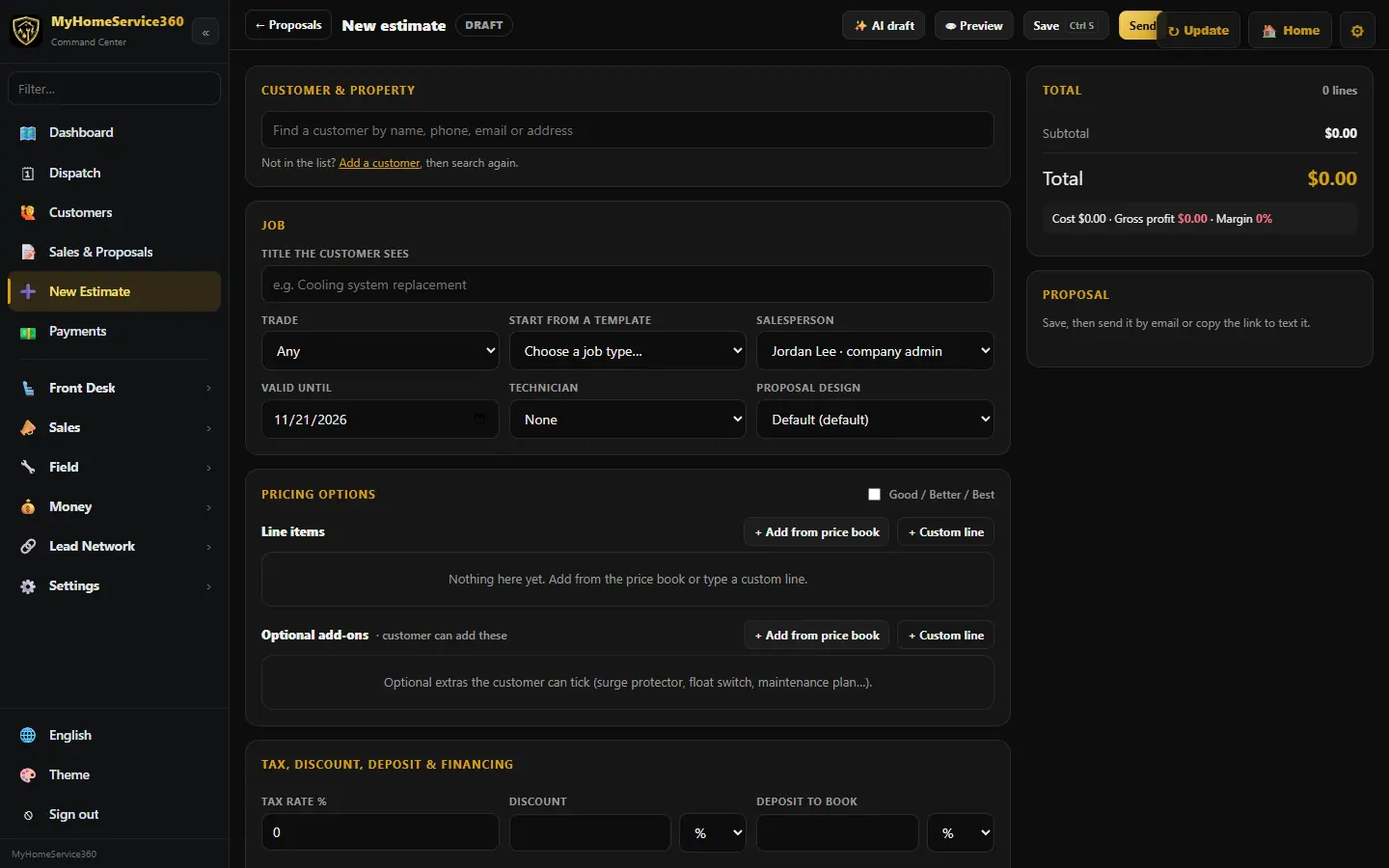
Step 1: Start a new estimate
Click New Estimate. Pick the customer and property; any Equipment on file shows up so you can suggest replacements. Give it a title the customer sees, the trade, the salesperson and a Valid until date. You can Start from a template. Under the customer, Proposal for says Residential or Commercial. It follows the customer, and you can change it on any one proposal. A commercial proposal shows no member savings or homeowner offers. Use general exclusions puts your company’s exclusions (Sales & Proposals → Settings → General exclusions) first in the proposal’s Exclusions. Type this proposal’s own wording in the box, or untick it.
Step 2: Add options and lines
Under Pricing options, click + Add from price book or + Custom line. Tick Good / Better / Best to lay out three options side by side. Put extras the customer can choose, like a surge protector or a maintenance plan, under Optional add-ons. The total, cost and margin update on the right as you go.
Step 3: Add a maintenance plan
Click 🛡 Add maintenance plan. Pick the systems (or click Use these to pull them from the customer’s Home Book: an outdoor unit and its air handler count as one system), then the plans to offer. It prices each plan from Price Book Setup → Maintenance plans and shows the math, for example 2 systems × $170 = $340 − 10% multi-system = $306/yr, plus the monthly figure. Change the discount % or type your own plan price for this estimate. Show the plans as Essential / Plus / Premium cards the customer picks from, or as an optional add-on on a repair proposal.
Step 4: Or let AI draft it
Click AI draft, type what you found or add photos, and it drafts the lines from your own price book. It never makes up a price: anything it can’t match comes back unpriced for you to fill in.
Step 5: Set tax, discount, deposit and terms
Under Tax, discount, deposit & financing, set the tax rate, any discount and a Deposit to book. You can show an “as low as” monthly payment using the APR and months you enter (there’s no lender connected yet). Fill in the terms and warranty, and add photos. The Scope of work card has its own guide: write the scope of work.
Step 6: Preview and send
Click Preview to see it as the customer will, Save (or Ctrl+S), then Send it by email or copy the link to text it. The email has a big View my proposal → button, plus 📄 View PDF and ✓ Accept proposal, so the customer gets there in one tap. Pick a look under Proposal design, or set up your own in Sales → Design Your Proposal.
Step 7: The customer approves
The customer opens the link, picks an option, ticks add-ons, reads the scope (with Before you sign: what’s not included right above the signature), signs on the screen and pays the deposit by card or bank. They can also send you a question or ask for a change, which shows under Customer questions.
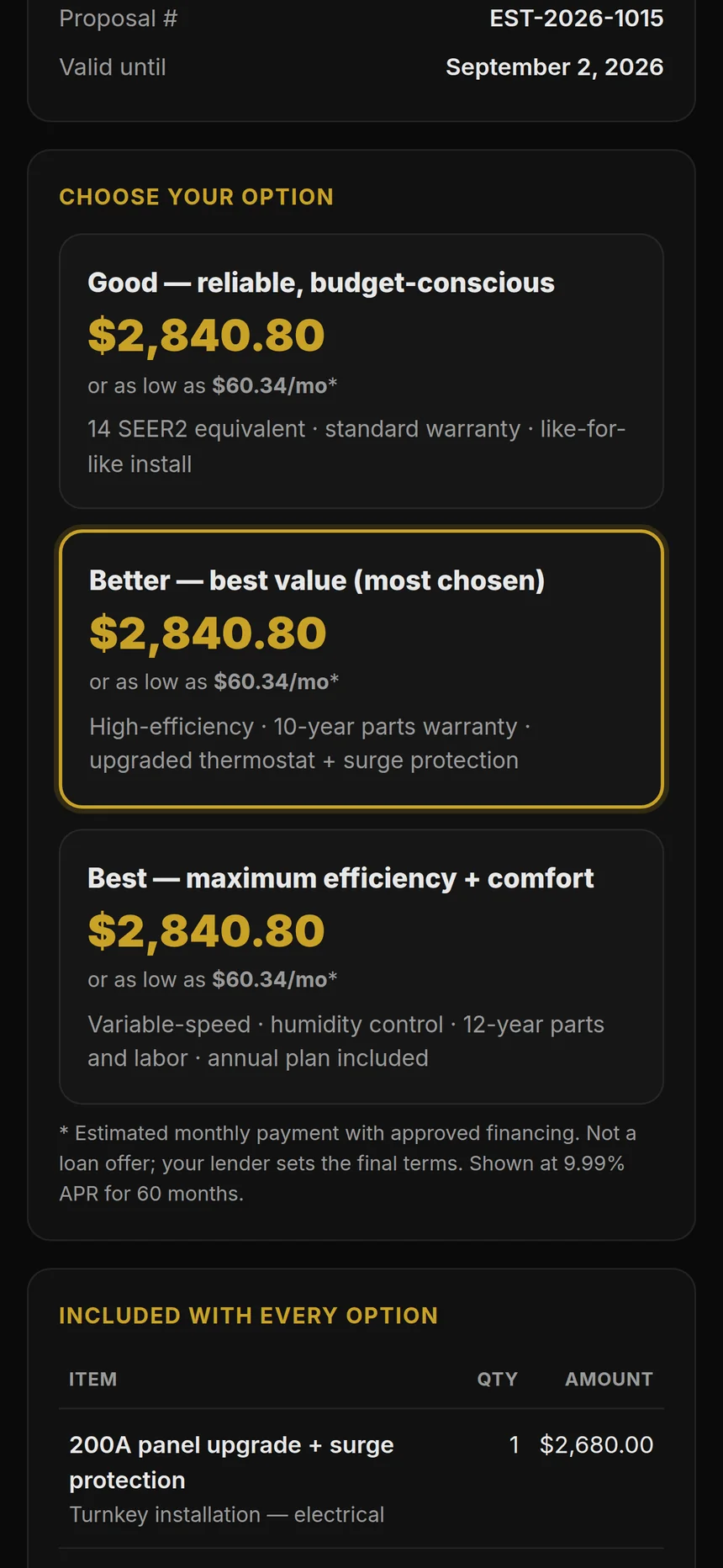
On a phone. Real screen from the demo account; names and numbers are sample data. Step 8: Follow up and schedule
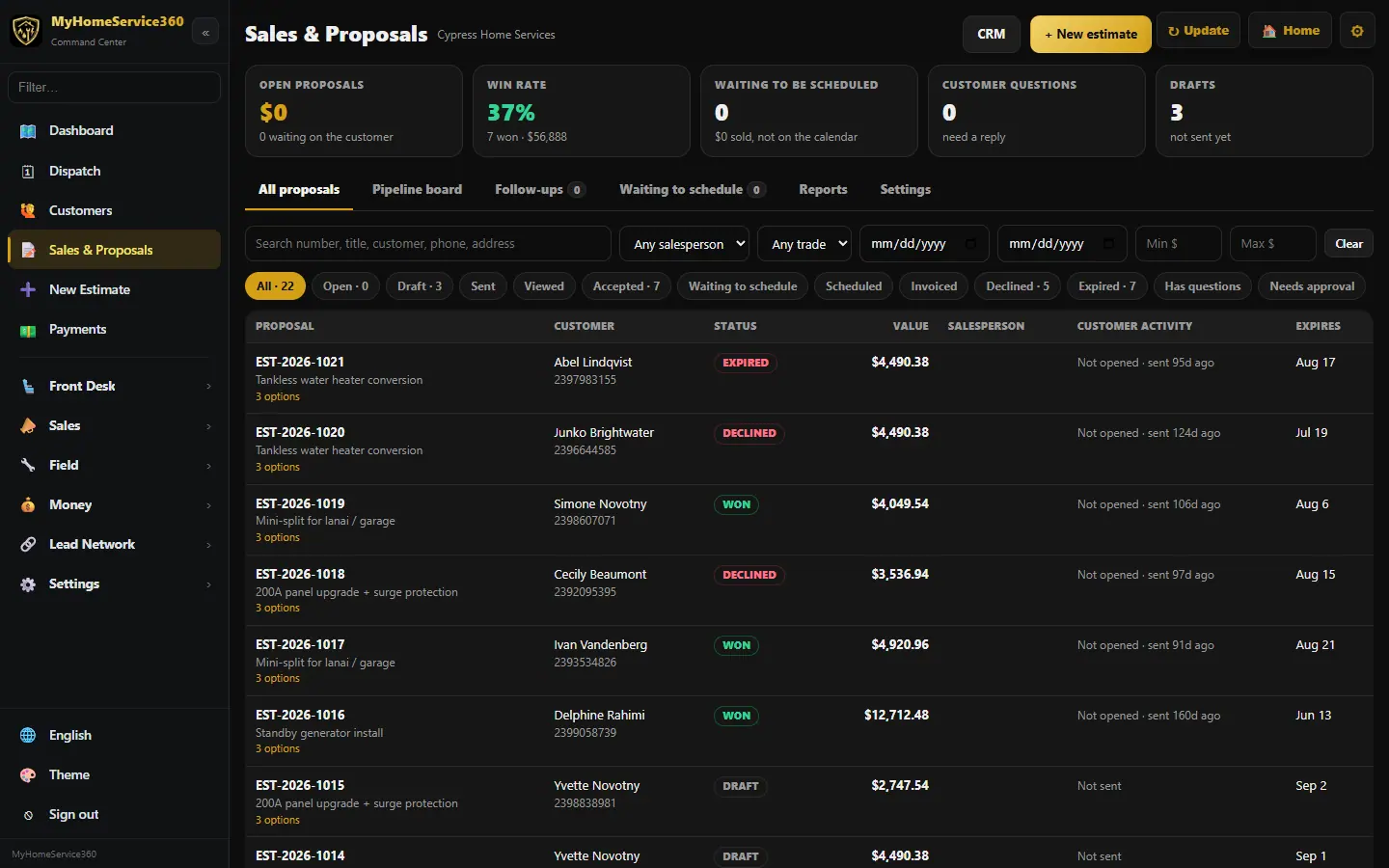
Open Sales & Proposals to see Who to call next, follow-up tasks and the pipeline. After the customer accepts, they’re asked when they’d like the work scheduled, and approved work that isn’t on the calendar shows under Sold, not on the calendar yet until it is.
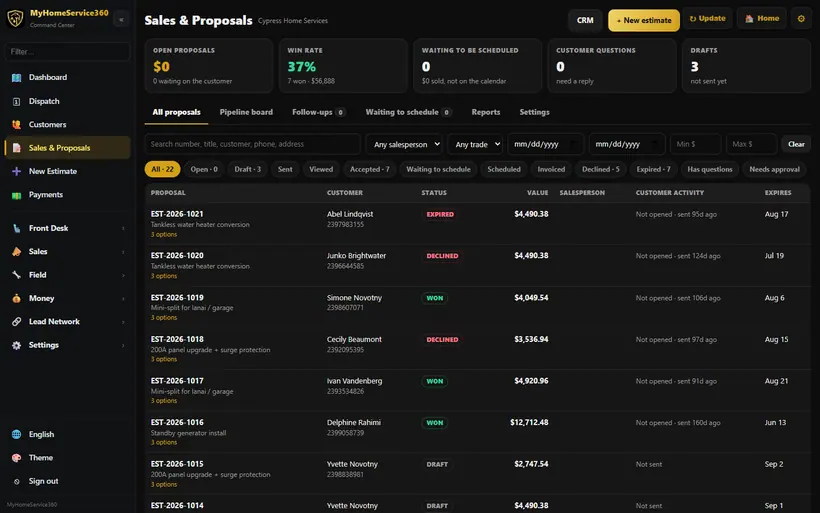
Real screen from the demo account; names and numbers are sample data. Step 9: Turn it into an invoice
When the work is done, convert the estimate to an invoice in one step. Any deposit you collected comes off the balance. Big jobs can be billed in parts with progress invoices.
Still stuck? Tell us what you were trying to do and where you got stuck. A screenshot helps.
Your ticks are saved in this browser only. Updated October 2026.
Questions about this
How are proposal and job numbers set?
They start with the year: proposal 261178 is from 2026, and the job made from it gets the same number, 261178. Jobs with no proposal get the next year number. Searching the old number (like 1178) still finds it. Owners can turn this off, or renumber older proposals, in Proposals, Settings, Proposal and job numbers.
Why does a commercial proposal show no member savings?
Member pricing and maintenance-plan savings are homeowner offers, so they only show on residential proposals. Change Proposal for in the builder if one is sorted wrong.
My descriptions have bullets. Will they show as a list?
Yes. Lines that start with a bullet, a dash or a number, lines like 2 - Fan motors, and a run of work steps (one per line) show as a list on the proposal, the PDF and the email. Exclusions:, Notes: and Warranty: lines get a heading. Your saved text never changes.
Can I see if the customer opened the proposal?
Yes. Each proposal shows when it was first and last opened, and how many times.
Are follow-up emails automatic?
Only if you turn them on. Automatic proposal follow-ups are off until you switch them on in Sales & Proposals settings or Automatic Messages.
Do you offer customer financing?
Not yet. A proposal can show an estimated monthly payment from the APR and term you enter, but no lender is connected today.