
Track job costing and profit
See real profit on every job: revenue against labor, materials, equipment and overhead, with a check that it all reached your books.
Free forever Not a trial. No card, no contract, unlimited users. Card payments cost 3.9% + 30¢. Our promise →
Step 1: Set your cost settings once
Open Money → Job Costing and the Settings tab. Set Loaded labor (burden), Overhead, target and mileage, how overhead is allocated, how materials are costed and your Cost codes (or Reset to trade defaults). Click Save settings.
Step 2: See profit by job
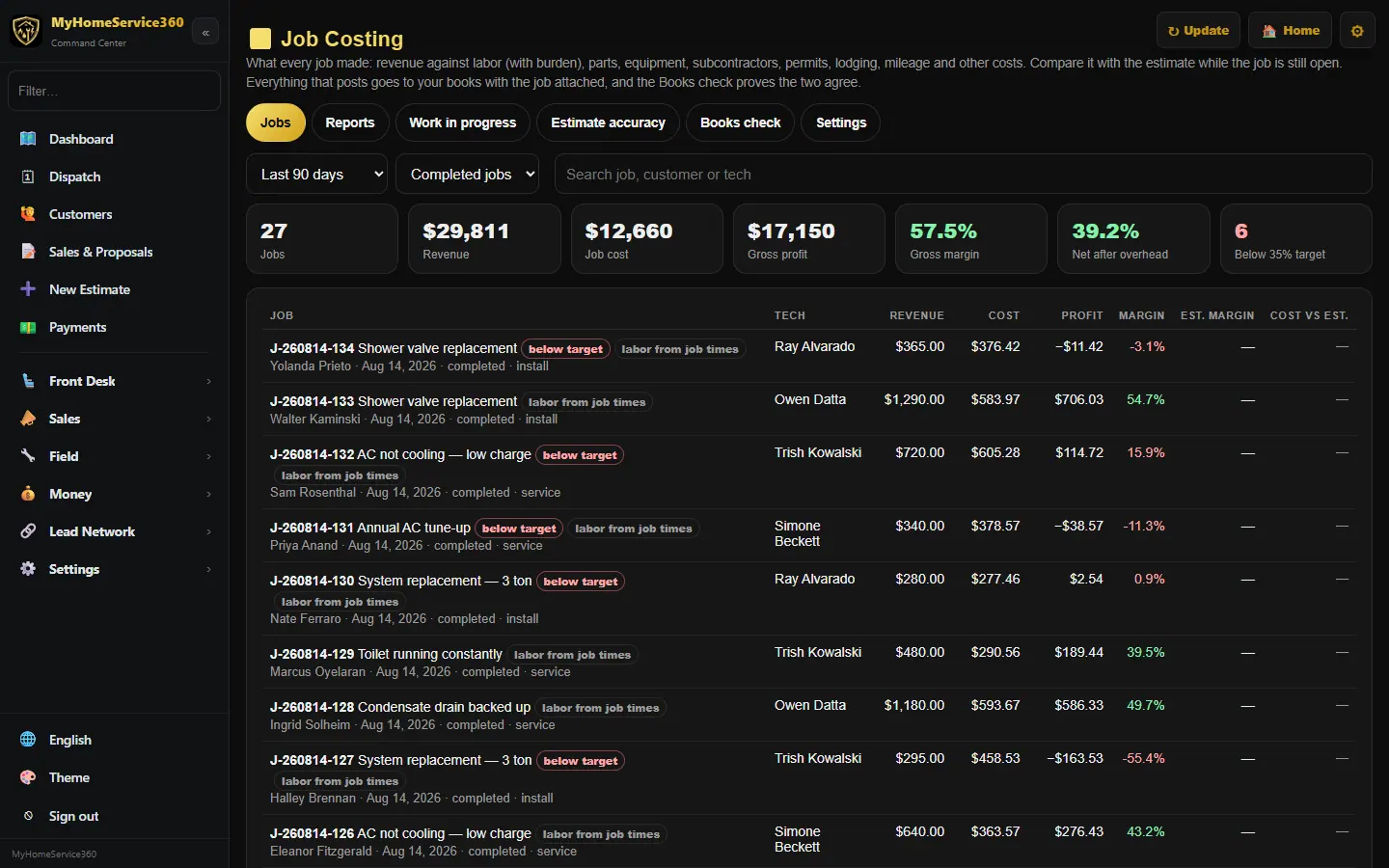
The Jobs tab lists jobs with revenue, cost and margin. Click a job to see Estimated vs actual, cost by code and every cost on it.
Step 3: Add costs the app didn’t catch
On a job, use Add a cost: category, cost code, description, vendor, amount, miles and how it was paid. You can also attach a Bill Pay bill or record a change order.
Step 4: Watch work in progress and accuracy
Work in progress shows open jobs and what’s been billed against them. Estimate accuracy compares what you estimated with what jobs actually cost, so you can tune your prices.
Step 5: Run the books check
On Books check, click Run books check. It lists any job costs that haven’t reached the books yet, and any mismatches to look at.
On one job: open the job here. Books tie-out asks your books directly whether every invoice and cost on the job is in the books for the same amount: a check mark means it ties, an X names the entry that doesn’t. Purchase orders shows what’s committed, received and billed against the sold price, with the projected margin once the open POs arrive. Add a PO for the job from there, or from the books when you enter the bill.
Still stuck? Tell us what you were trying to do and where you got stuck. A screenshot helps.
Your ticks are saved in this browser only. Updated October 2026.