
Turn on online booking
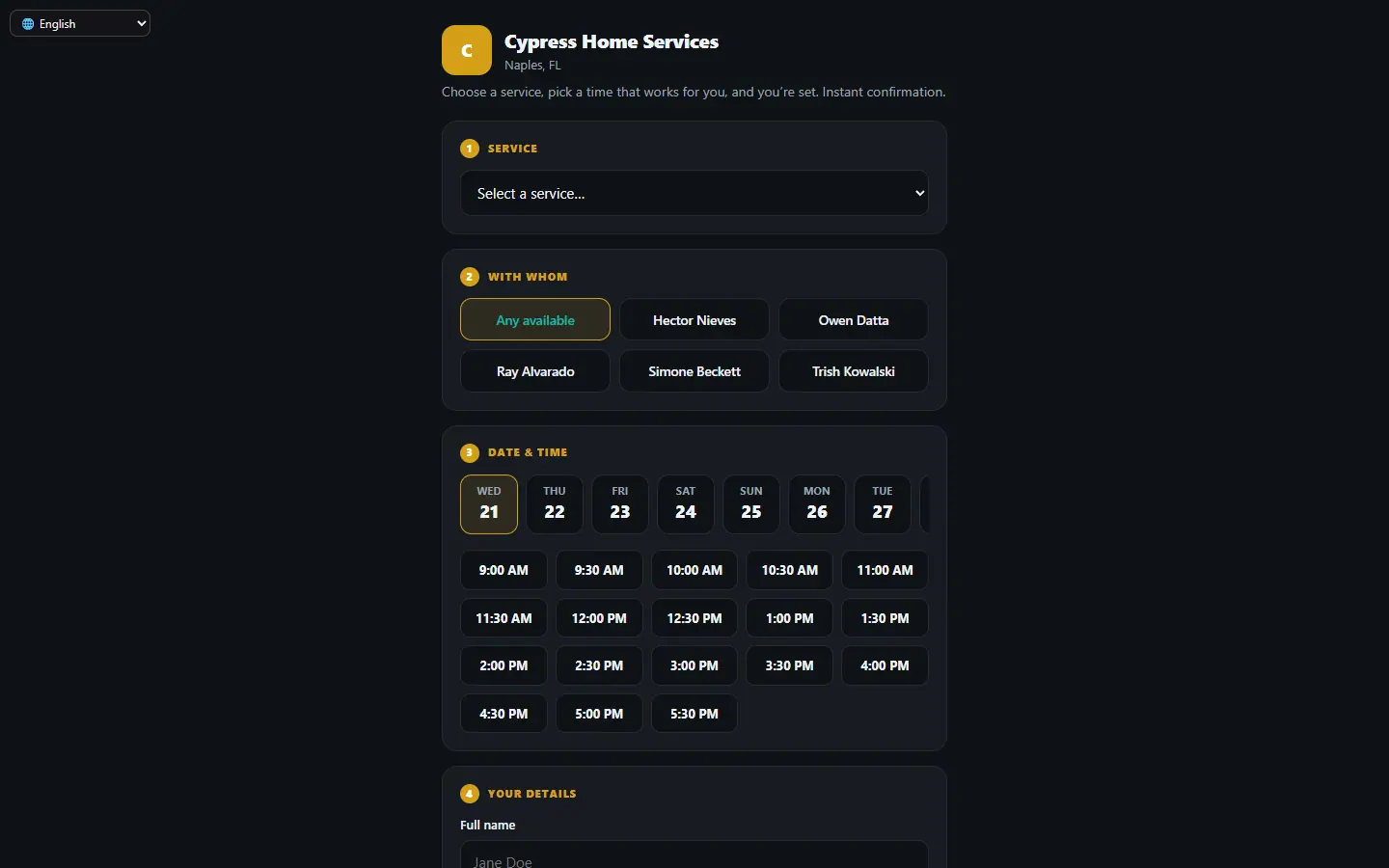
Let customers pick a service and an open time slot, or send a request you confirm first.
Free forever Not a trial. No card, no contract, unlimited users. Card payments cost 3.9% + 30¢. Our promise →
Step 1: Choose how bookings arrive
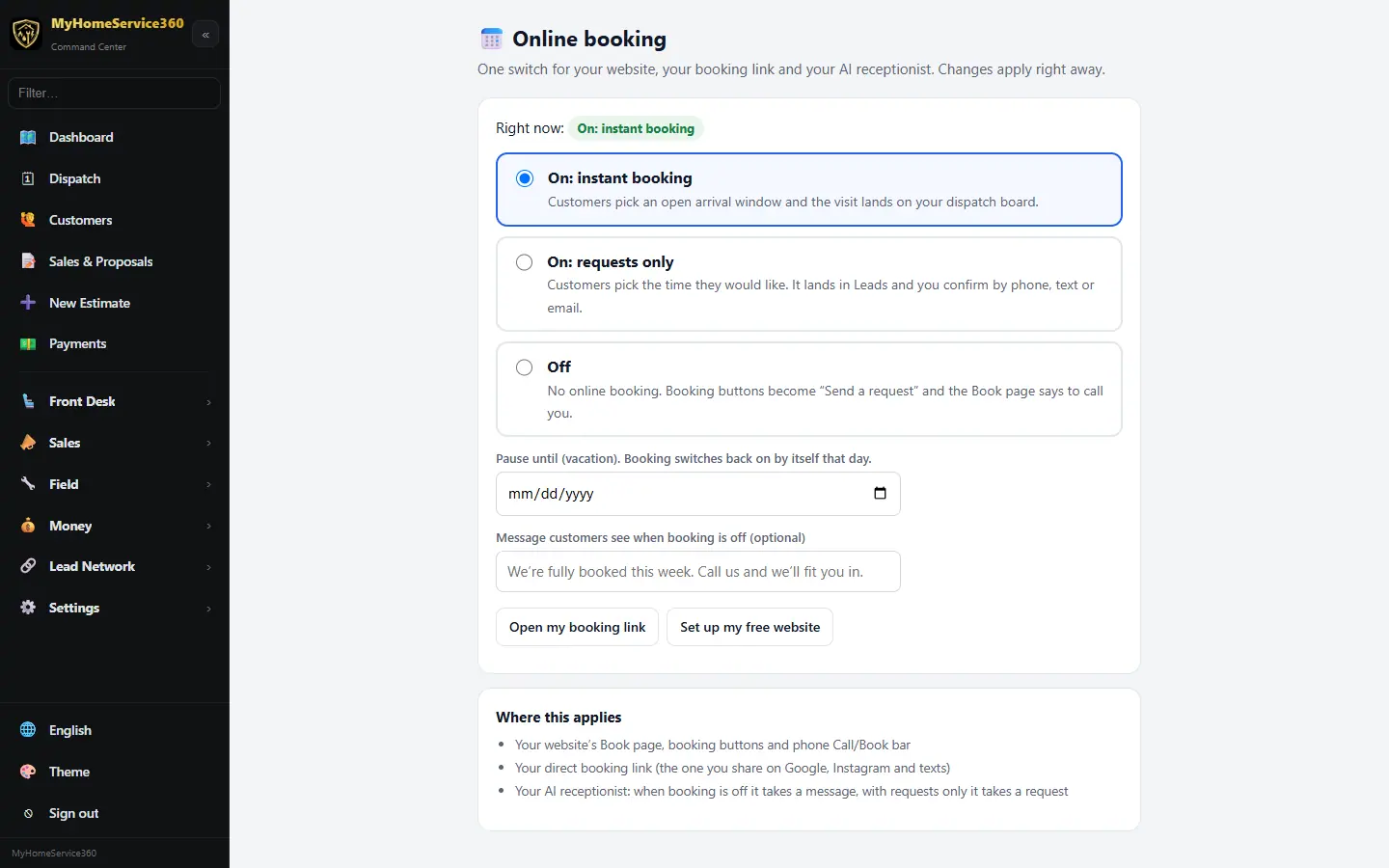
Open Settings → Online Booking (on / off). It’s one switch for your website, your booking link and your AI receptionist, and changes apply right away. Pick On: instant booking (customers pick an open arrival window and the visit lands on your dispatch board), On: requests only (they pick a time they’d like, it lands in Leads, and you confirm by phone, text or email) or Off. The same switch is the Booking row at the bottom of the side menu on every page, with On, Requests only and Off.
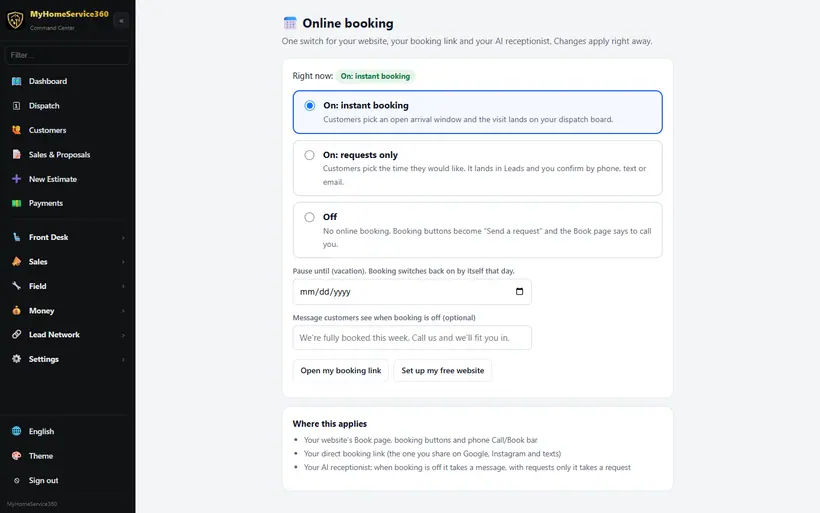
Real screen from the demo account; names and numbers are sample data. Step 2: Check what can be booked
Customers see the services and time slots your schedule allows. Bookings land on the dispatch board as scheduled jobs.
Step 3: Take payment when clients book
Open Front Desk → Service Menu → Booking policy and turn on Payment when clients book online. Pick what clients pay up front: a deposit (a % or a flat amount), pay in full with an optional “pay now and save” discount, let the client choose, or nothing. You can also offer a nonrefundable rate with its own discount, the way hotels do, and let clients pay at the visit instead. We start you with a suggestion for your trade, and each service can use its own setting under Edit service → When booked online.
Money paid at booking is held as a customer deposit in your books, not revenue. It becomes revenue when you check the visit out, and the pay-ahead discount shows on the receipt. If a client cancels in time, open the appointment and press Refund booking payment. Nonrefundable bookings aren’t refunded unless you choose to.
For field work like HVAC, take the deposit when the customer accepts your proposal. See the estimates guide.
Step 4: Share your booking link
Open Sales → Online Booking to get your link. Add it to your website, Google Business Profile, social profiles and email signature. Your free website includes it already.
Step 5: Try it yourself
Open your booking link on your phone and make a test booking, then cancel it, so you see exactly what customers see.
Still stuck? Tell us what you were trying to do and where you got stuck. A screenshot helps.
Your ticks are saved in this browser only. Updated October 2026.
Questions about this
Does online booking cost anything?
No. The booking page and confirmation are free.
Can clients pay when they book?
Yes. Turn on Payment when clients book online under Front Desk, Service Menu, Booking policy. Ask for a deposit or the full price, offer a pay-ahead discount or a nonrefundable rate, or let the client choose. It’s off until you turn it on.
How do I refund a client who paid when they booked?
Open the appointment in the Appointment Book and press Refund booking payment. It goes back to their card, and your books move it out of customer deposits. If you already refunded it in Stripe, tick the box to just record it.