
Phone system and AI receptionist
Phone system + AI receptionist: $79/month* add-on, includes after-hours on-call dispatch and texting. Calls get routed, recorded and transcribed, and the AI answers when you can’t.
Free forever Not a trial. No card, no contract, unlimited users. Card payments cost 3.9% + 30¢. Our promise →
Paid add-on: Phone system + AI receptionist: $79/month* add-on, includes after-hours on-call dispatch and texting. It includes your business line, calls, the AI receptionist, built-in texting and call recordings. Fair use: 1,000 call minutes and 500 texts a month* are included, and use above that is billed as overage. The app shows the price before you turn it on.
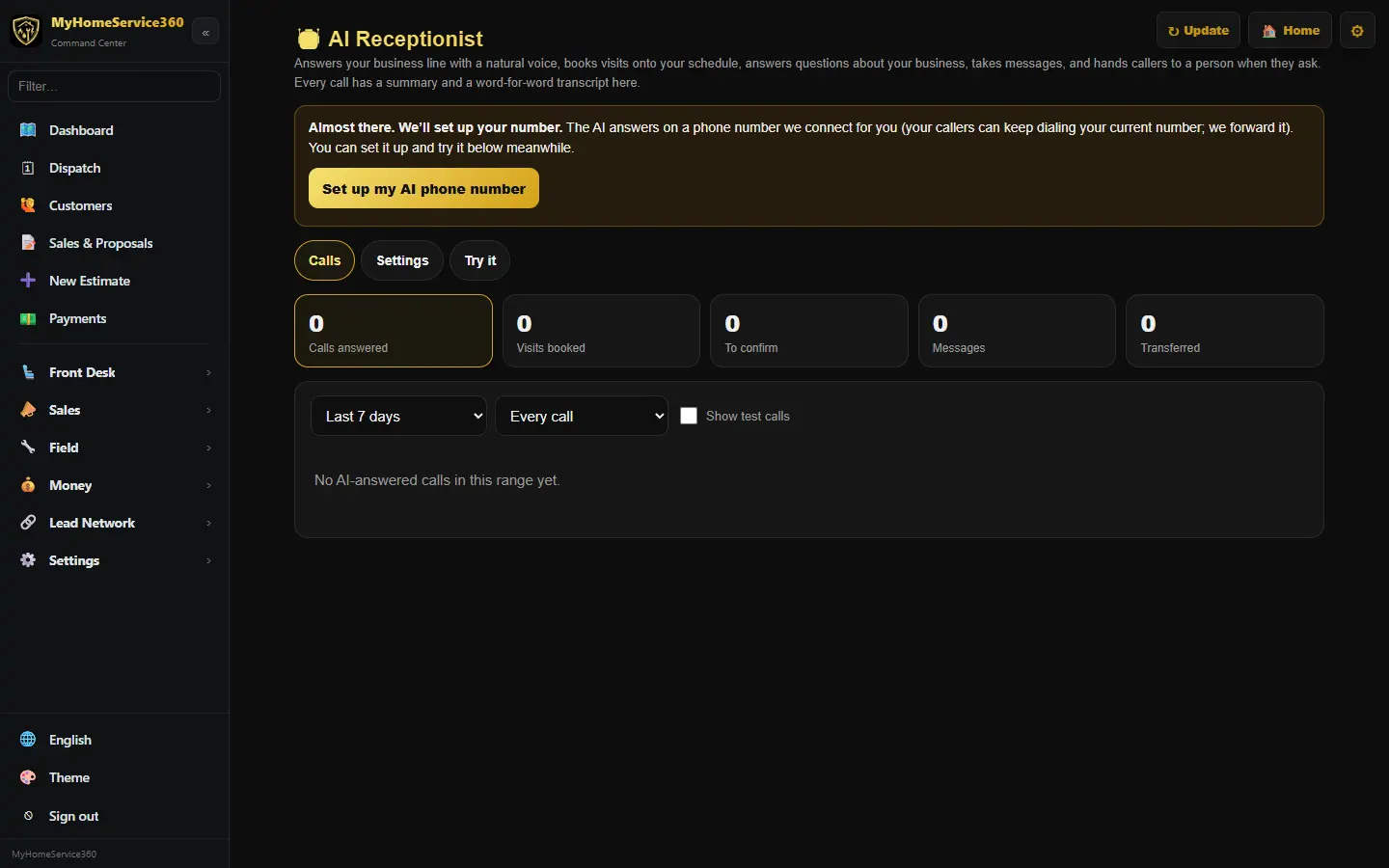
Step 1: Turn on the phone system
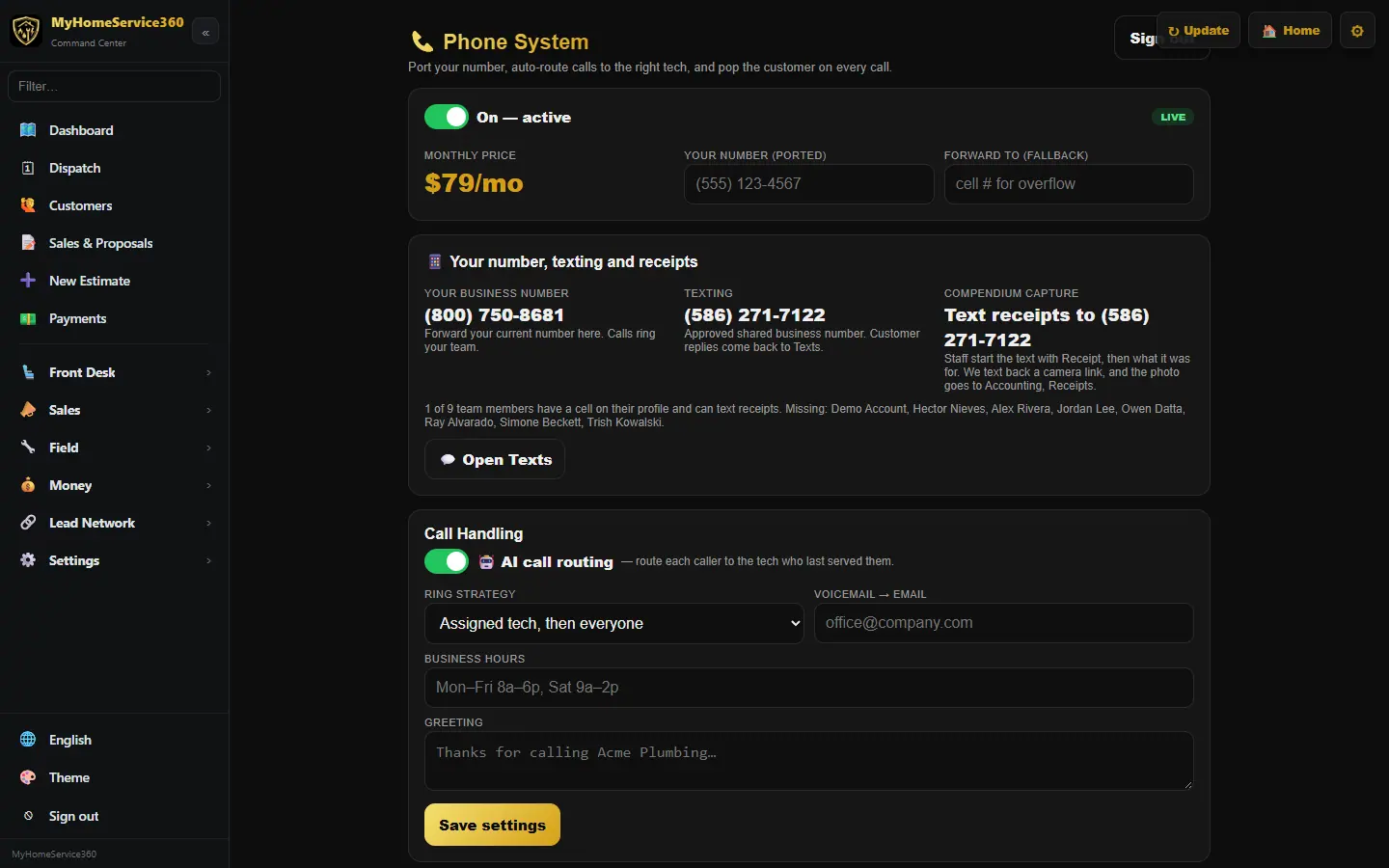
Open Sales → Phone System. You get a line on our system. Keep your current number by forwarding it to that line, or request porting with Request porting.
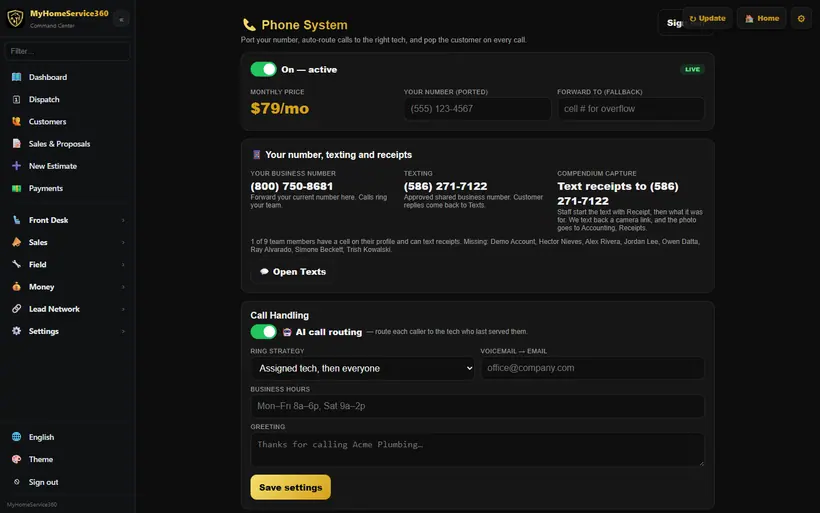
Real screen from the demo account; names and numbers are sample data. Step 2: Choose where calls go
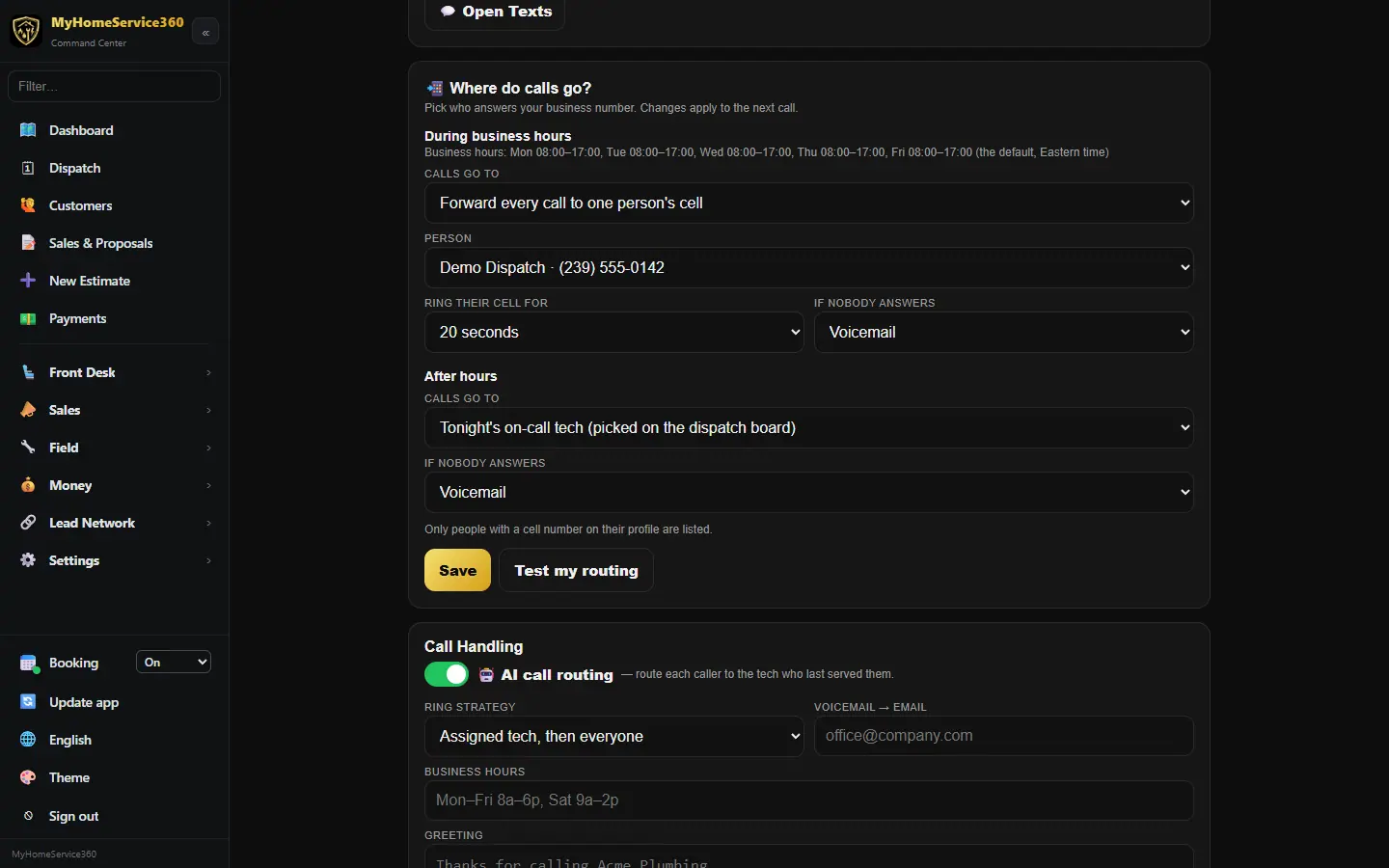
On the same page, Where do calls go? sets who answers your business number. Changes apply to the next call.
- During business hours, calls can Forward every call to one person’s cell (handy for an owner without an office yet), Ring the office computers, then a backup person’s cell after about 12 seconds, or ring The office phone number. Pick how long to ring a cell and what happens If nobody answers: the AI receptionist (when it’s on) or voicemail.
- After hours, calls can go to Tonight’s on-call tech (picked on the dispatch board), one person’s cell, the AI receptionist, voicemail, or Same as business hours. You can also have callers “press 2 for an emergency” to ring the on-call tech.
Only people with a cell number on their profile are listed. Click Save, then Test my routing.
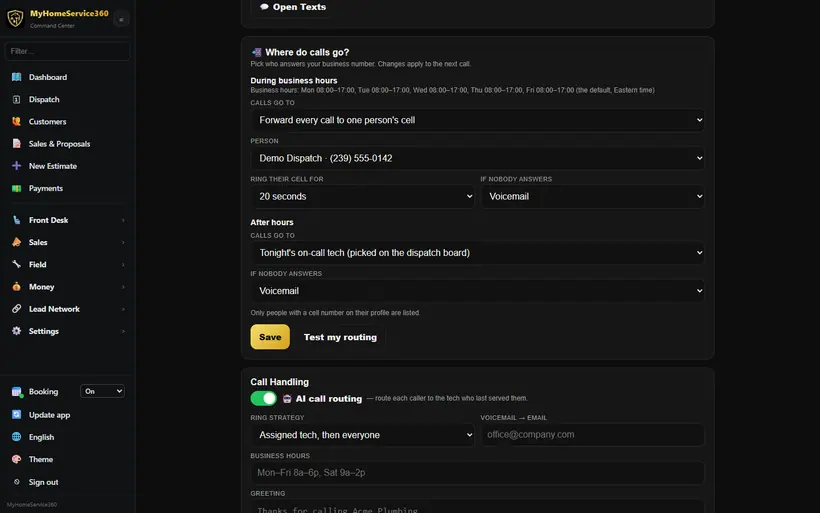
Real screen from the demo account; names and numbers are sample data. Step 3: See each call as it comes in
When your business number rings, every office screen signed in to MyHomeService360 shows the call front and center: the caller’s account (address, tags, preferred tech, open jobs and balance) or New caller, and where the call is: ringing the office computers, forwarded to a cell, with the AI, in voicemail, answered and by whom, or missed.
The first time, click Turn on call alerts so your computer shows calls even when the tab is in the background. When you answer in the pop-out phone window, the customer’s account opens in the tab you used last, unless you’re in the middle of typing something.
Step 4: While you’re on a call: the call bar
Once you answer, or press Minimize on the pop-up, a small call bar takes over. It stays on screen while you move between pages, so the call never gets buried. It shows who’s calling (click the name to open their account, or to add them as a new customer), the call timer and whether you’re Connected, On hold or Muted.
- Mute, Hold and Hang up work like the buttons on a desk phone.
- Keypad sends tones, for a menu that says “press 1.”
- Transfer calls a coworker or any phone number while the caller waits on hold. Then click Complete transfer to leave the call, Talk to both, or Cancel transfer.
- Notes opens a small box. What you type is kept as you go and saved to the customer’s history when the call ends.
- After the call, click Done, ready for the next call so calls ring you again.
Drag the bar by its grip (⠿) anywhere on the screen. It snaps to the nearest edge or corner and stays there next time. On an iPad, press and hold the bar for a moment, then drag. Click – to shrink it to a round button with the timer, and click that button to bring it back. If the phone window gets closed during a call, the bar says so and offers Reopen the phone window.
The thin strip at the top of each page shows your phone status. Click it to switch between Available and your other statuses. CSRs ready shows who on your team is answering, and Calls go to shows where calls ring right now: green for the office, amber when they’re forwarded to someone’s cell, and purple for after hours. Admins and managers can switch it there: ring the office, forward every call to one person’s cell, or turn on After-hours answering now until you switch back or until you next open. Click ⌃ to tuck the strip away; the small 📞 tab at the top brings it back.
Step 5: Set your business hours and call handling
Under Business hours, pick Use our regular business hours (same as online booking) so one set of hours serves both, or Phone hours are different. For each day, set the opening and closing times (in 15-minute steps) or check Closed. Copy Monday to weekdays saves some clicks. Pick your Time zone and click Save hours. The badge shows Open now or After hours now, and Test my routing uses the new hours right away.
Each day has one open stretch, and hours can’t run past midnight. With no hours saved, calls are treated as business hours around the clock. Add holidays under Holidays and closed days: on those days calls follow your after-hours choice all day, and online booking is closed too.
Under Call Handling, choose a Ring strategy (for example, ring the tech who last served that customer, then everyone), a Greeting, a Forward to number as a fallback, and Voicemail → email. Click Save settings.
Step 6: Set up the AI receptionist
Open Front Desk → AI Receptionist and click Set up my AI phone number. The AI answers on a number we connect for you, and callers keep dialing your current number because you forward it. On the Settings tab, under Answering, pick always, after hours only, or overflow after a set number of seconds.
Step 7: Tell it about your business
Fill in What it knows about your business (hours, service area, services and your own FAQ answers) and What it may do: book jobs into open arrival windows, or take requests and messages only, and how it talks about price. Click Save settings.
Step 8: Try it before it goes live
Use the Try it tab to talk to it before your customers do. It always says it’s an AI and that the call may be recorded.
Step 9: Review calls
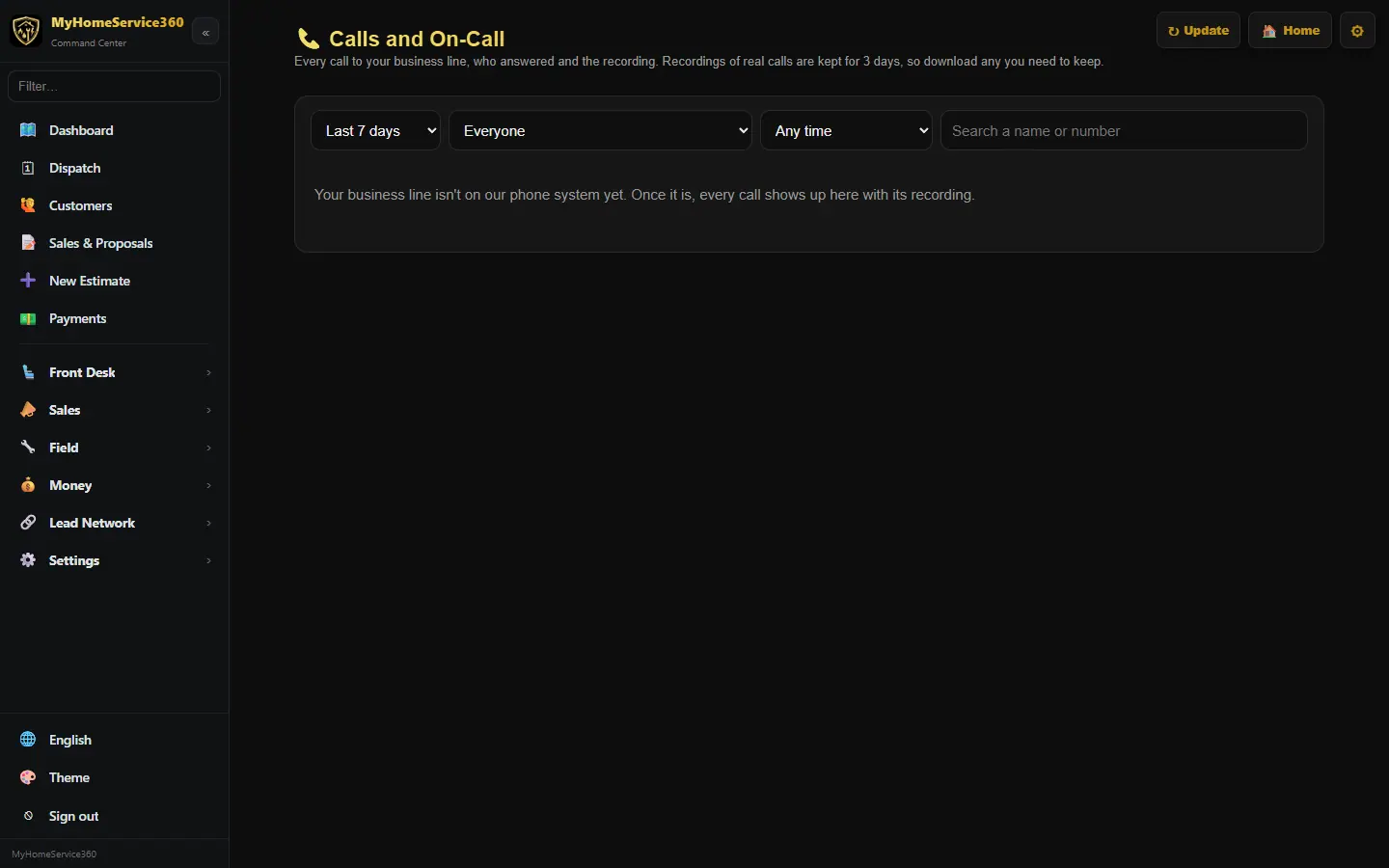
Every call gets a recording, a transcript, a summary and the next step in Front Desk → Calls & On-Call and on the customer’s history. Recordings are kept three days; click ⬇ Download to keep one. Jobs it books are flagged “Booked by AI — confirm” on dispatch.
Delete test calls and spam. Owners, admins and office staff can tick calls (or use 🗑 Delete call on one) and press 🗑 Delete selected. Pick a reason: Test call, Spam / robocall, Wrong number, Duplicate or Other (Other needs a short note). Deleted calls leave the call log, the customer’s history and your call numbers, so test calls never skew your reports. The recording is removed from view and expires on its own. Owners can tick Show deleted calls to see them with the reason and ↩ Restore one.
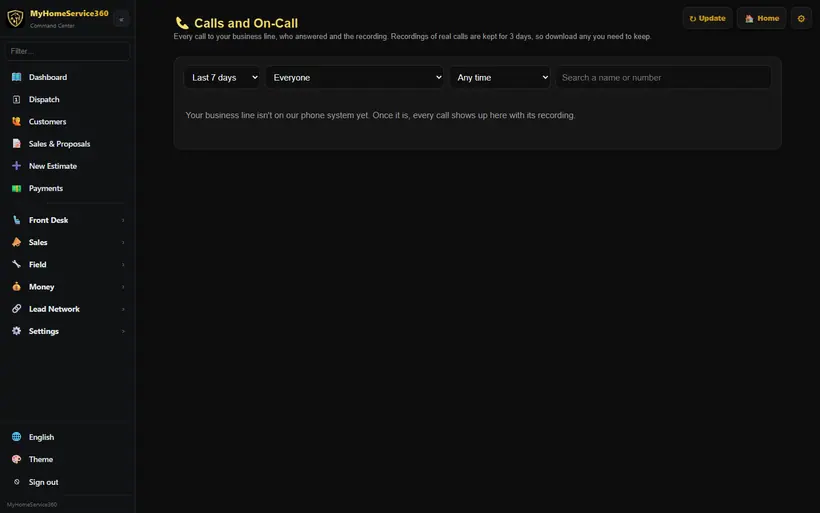
Real screen from the demo account; names and numbers are sample data. Step 10: Set after-hours on-call
Set tonight’s on-call tech or a weekly schedule in Calls & On-Call, or right-click a van on the dispatch board and pick Set as after-hours tech tonight. With after-hours calls set to the on-call tech under Where do calls go?, real emergencies go to them.
Step 11: After-hours emergencies
When the AI receptionist answers after hours, it tells the caller you’re closed and the on-call tech will call them back. It asks what’s wrong. A customer you already have is greeted by name and isn’t asked for a name or address. A new caller is asked once each for their name, whether the number they’re calling from is the best one, and the service address. Then it asks whether it’s an emergency that needs someone tonight or can wait until the morning. The call is recorded and transcribed like any other.
Right after that, tonight’s on-call tech gets a text with the caller’s name, number, address, the problem and a link to the ticket. A service ticket is created automatically, assigned to them and scheduled for the time of the call. “Can wait” calls still get a ticket, scheduled at your next opening time and marked Callback: next business morning, and the text says it can wait. If the on-call tech has no cell on file, the text goes to the backup you pick, then the owner, and an alert shows in the office either way. The customer gets no extra texts.
Turn it on or off under After-hours emergencies in Sales → Phone System. It’s on by default with the phone system. Set your Response target and who gets the text if the on-call tech has no cell.
Step 12: Track after-hours response time
Response time runs from the moment the customer called to the moment the tech taps I’ve arrived in the tech app. The job page and the dispatch board show it in one line, for example “Called 10:42 PM · Tech on the way 10:58 · Arrived 11:31 · Response 49 min”, along with when the tech was texted and when they called the customer back from your phone system.
The dashboard card After-hours response, avg last 30 days opens the full report, also linked from Reports: averages and counts per tech, and the calls that went over your target.
Still stuck? Tell us what you were trying to do and where you got stuck. A screenshot helps.
Your ticks are saved in this browser only. Updated October 2026.
Questions about this
What does the phone system cost?
Phone system + AI receptionist: $79/month* add-on, includes after-hours on-call dispatch and texting. There’s no setup fee. Fair use: 1,000 call minutes and 500 texts a month* are included; use above that is billed as overage.
Is the AI receptionist free?
No. It’s part of the $79/month* phone system add-on. The rest of the software stays free.
Do I need the phone system?
If you’re a one-person business without an office, probably not yet. If you have a couple of people and an office, it’s a good fit.
Can I keep my business number?
Yes. Forward your current number to your new line, or ask us to port it.
Who gets the text for an after-hours emergency?
Tonight’s on-call tech. If they have no cell on file, the backup you pick under After-hours emergencies, then the owner. The office sees an alert either way.
What happens to calls on a holiday?
Add the date under Business hours, in Holidays and closed days. That day, calls follow your after-hours choice all day, and online booking is closed.
*Included minutes and texts cover typical use. Usage above the included amounts is billed as overage, and larger or high-volume companies may be quoted higher phone and texting rates. See our Terms.