
The homeowner app and Home Book
Your customers get a free home app with their service history, equipment, invoices and a Home Book, and can message you or request service.
Free forever Not a trial. No card, no contract, unlimited users. Card payments cost 3.9% + 30¢. Our promise →
Step 1: Invite your customer
Customers can claim a free home account from the link on their estimate, invoice or visit report, or sign up at home.myhomeservice360.com.
Step 2: What your customer sees
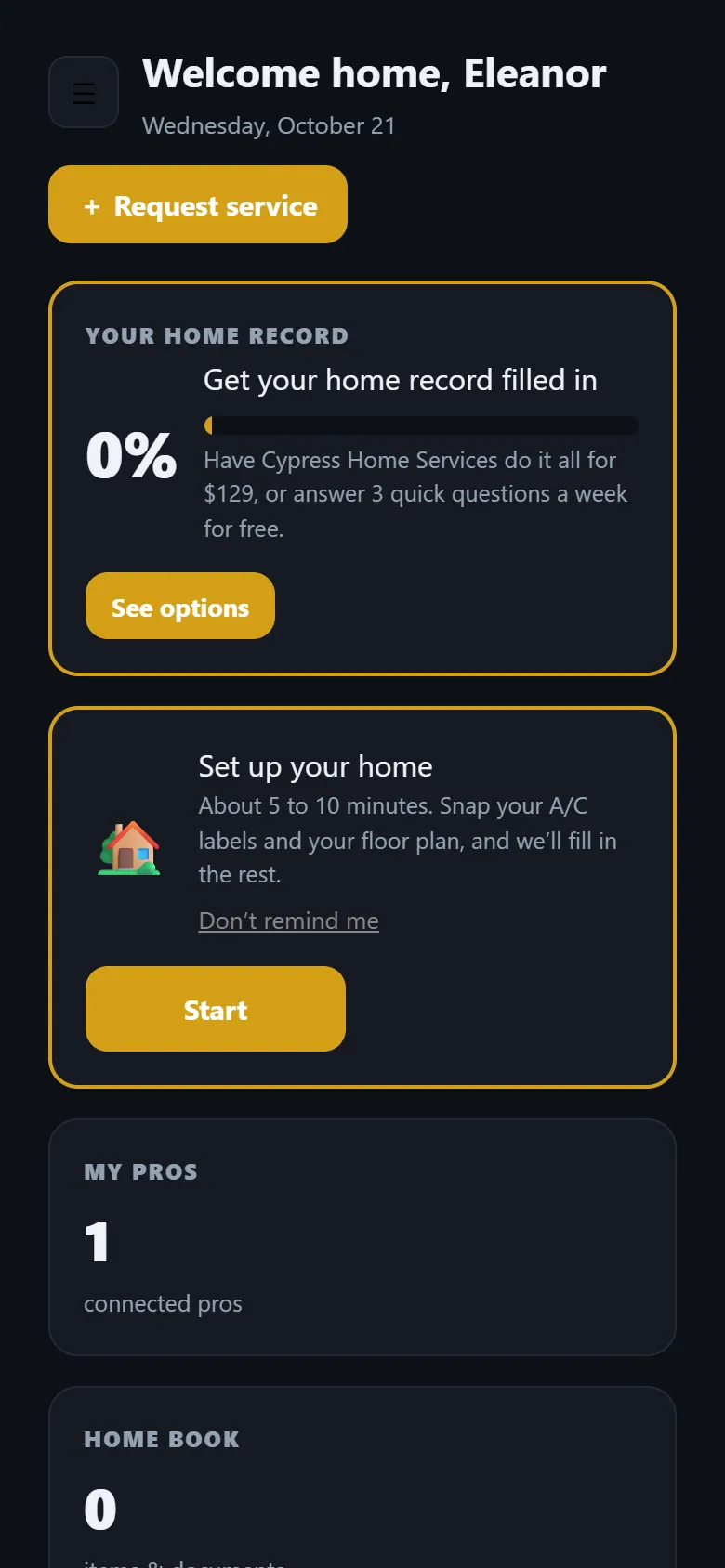
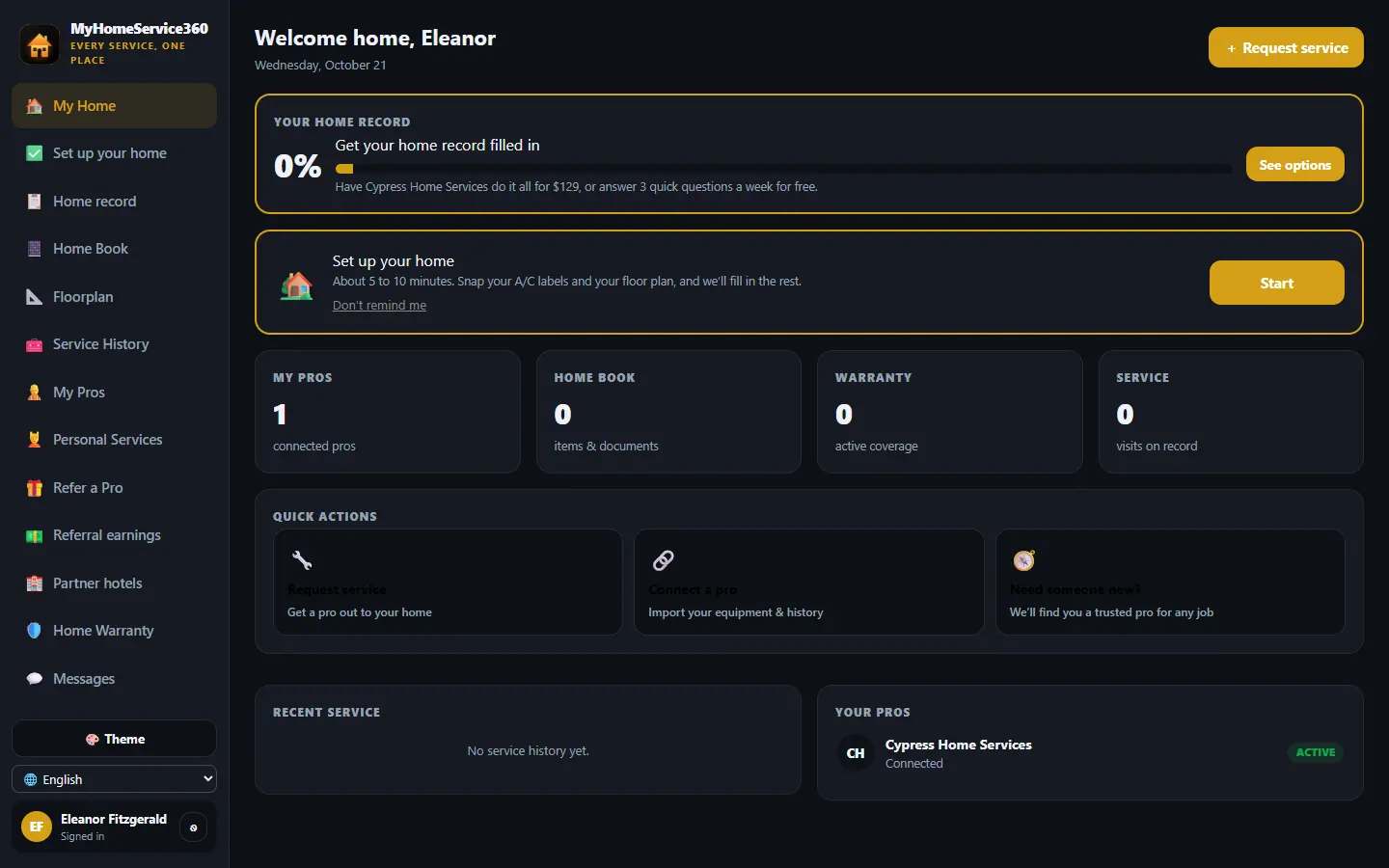
The home screen has + Request service, how complete their home record is, Next up (their next visit), their Plans, the latest Updates and any balance due. Every tile opens its section: My Pros, Home Book, Warranty and Service.
On a computer or iPad the menu is on the left: Home, the gold Plans button, Calendar, Pay, Updates, Messages, then My Home (home record, Home Book, equipment and filters, floor plan, setup), Service (history, pros, warranty), Money & rewards, More and Settings. On a phone the tabs at the bottom are Home, Calendar, Pay, My Home and More, with the gold Plans button at the top.
Step 3: Plans
Tap Plans (or See plans on the home screen) to see the plan they have, the maintenance plans you offer online, and Start a plan. They pick yearly or monthly billing, agree to the terms, sign with their name, and pay the first bill. If you haven’t put plans online yet, they see a button to message you about one.
Step 4: Calendar and updates
Calendar shows every visit from every company they’re connected to: your jobs and plan visits, and appointments with salons, spas or shops on TotalPro360. They can switch between a list, a week and a month. Each visit shows the time window, the company, the tech and its status: Requested, Scheduled, On the way, Arrived or Done. It refreshes about once a minute. Updates lists what’s new: a visit scheduled, a tech on the way, a visit report ready, an invoice ready, a plan renewal or an appointment reminder.
Step 5: Invoices and paying
Pay lists every open bill from all their pros and businesses, grouped by company, with the total due. Every invoice shows Paid, Pay $X, Partially paid, Refunded or Void. Tap one to see the whole invoice: line items, tax, discounts, the visit and the tech, payments and refunds, and a PAID stamp with the date and how it was paid. Unpaid ones have a Pay button. They can also download or print it, or tap Email me a receipt.
Step 6: Settings and the household
In Settings homeowners update their Profile (name, email, phone, photo) and their Home (address, size, year built, access notes and pets, which you see before a visit). They can also set Notifications, see and disconnect Connected pros, and manage Security, Billing and Appearance.
Under Household & users, the owner invites family or others by email or text, with a role. An Owner has full access. Family and Tenant can see everything, request service and message you. A Property manager can do everything except billing and the household list. A Viewer is read-only. Each person signs in with their own email and password and sees the same home. The owner can resend an invite, change a role or remove someone at any time.
Step 7: Getting the home record filled in
The app asks how the homeowner wants their home record filled in. White-glove: a local pro (usually you) comes out at a time they pick and fills in the floor plan, every appliance with model, serial number and manual, shutoffs and panel with photos, filter sizes, paint colors and warranty papers, for $129. Do it yourself: free, with 3 quick questions a week, like “Snap a photo of your water heater’s label.”
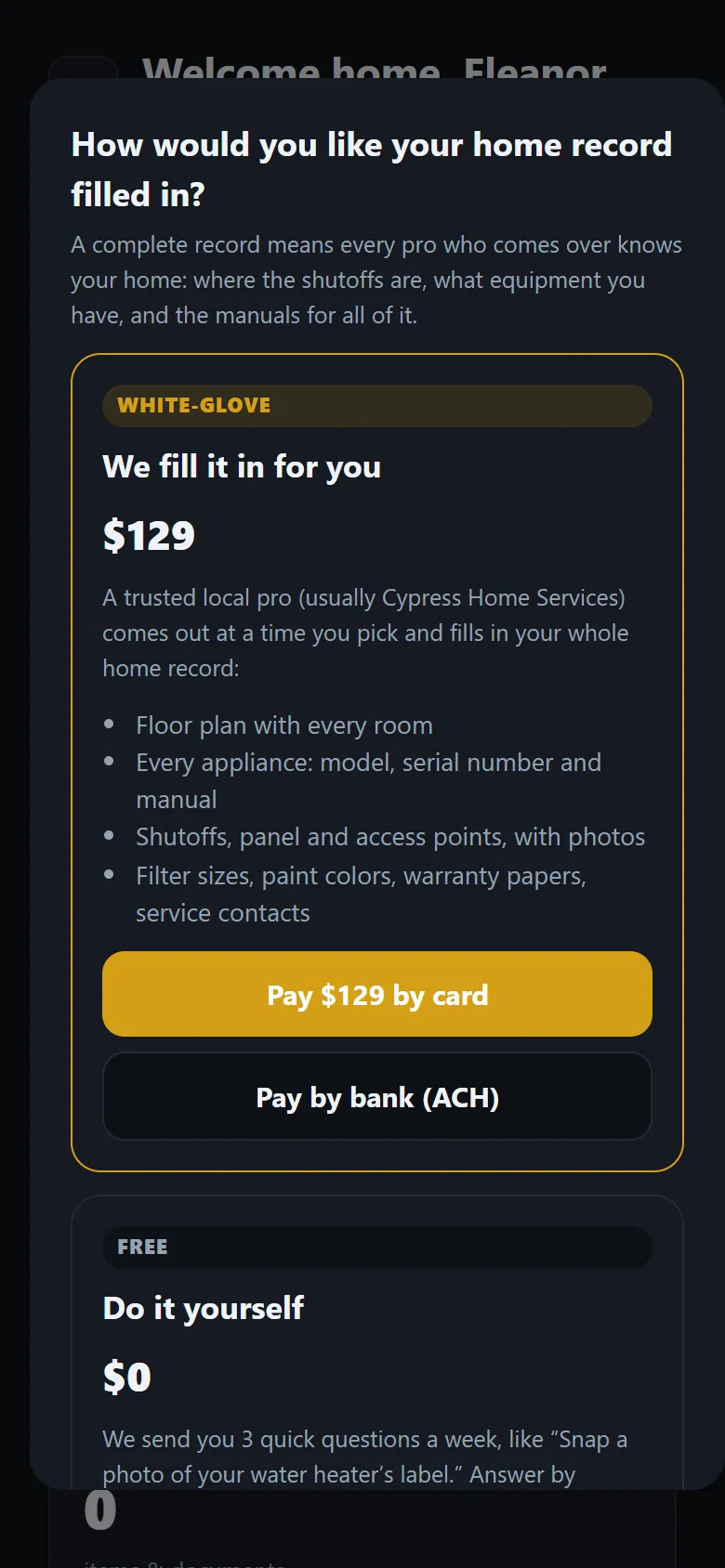
On a phone. Real screen from the demo account; names and numbers are sample data. Step 8: The Home Book
In the Home Book, customers keep their equipment and appliances, photos and a floor plan of the home, so the next tech knows what’s there. They decide which pros can see their records, and your pricing is never shared.
Step 9: My systems: every system, every home
My systems (My Home → My systems) lists every heating and cooling system, water heater, pool heater and more, in every home the customer owns. They can add a second home, like a lake house, and add each system with its make, model, serial, location, filter size and how many. A photo of the label fills in the details for them. What they add shows on your customer’s Equipment tab marked 🏠 Added by homeowner (a second home becomes a site on that customer), and what your techs log, including data-plate photos, filters, warranty, visits and any note you mark to share, shows under From my pro. Internal notes, costs and POs never show. The homeowner app is for residential customers only; commercial accounts don’t get it.
Step 10: Fix a photo on the wrong item
Each item’s Edit box (in the Home Book or My systems) lists its photos. For each one the customer can tap ★ Make label photo (the one the make, model and serial come from; Use this label’s details reads it again), pick ↪ Move to… to put it on the right item, like the air handler’s label that landed on the A/C, or tap 🗑 Remove. Remove asks first and shows an Undo bar for a few seconds. A photo your team added during setup can only be hidden from their view; it stays in your records. In From my pro, they can hide one of your photos from their Home Book too, and message you if it needs fixing.
On your side, the customer page’s Equipment tab has 🖼 Fix photos on any unit with photos: make one the nameplate photo, move it to another unit at that customer, or remove it (with Undo).
The home record checklist counts a unit by its name, model number or label, so an indoor unit named “AHU” (or a Carrier FX4 fan coil) counts as the air handler. If something still isn’t counted, they pick it from Already added? Pick it next to that line.
Step 11: Their home photo and what it is worth
The Home screen opens with a picture of the customer’s house. They tap Add a photo of your home (or the camera button on the photo) to use their own picture.
Under the photo they see the home’s value. They tap it to open the details: buttons that open the house on Zillow and Redfin, what they think it’s worth, what they paid and when, and how much it has gained since. A switch called Show my home value hides the number everywhere in the app, and the eye button on the Home screen does the same in one tap. Only the account holder (or a property manager they added) sees the value; family and tenants see the photo only.
Your team never sees a customer’s home value.
Step 12: Get-togethers: parties, dinners and meetups
Get-togethers (menu → 🎉 Get-togethers; on a phone, tap More) lets your customer plan a party at one of their homes, a dinner party, a dinner out (restaurant name and address with a map link; it doesn’t book the table) or a meetup anywhere. They keep a Friends & guests list with each person’s allergies (the 9 major US allergens plus others), diet (vegetarian, vegan, gluten-free, kosher, halal and more), a ⚠️ severe flag and notes. For each guest they pick Text, Email or both, then tap Send invites. Every guest gets their own link to answer Yes, Maybe or No, add extra guests, add it to their calendar, and update their own allergies, which the host sees. The Table allergy summary adds up the Yes and Maybe guests, with severe allergies on top. Send reminder and Send update are buttons only; nothing is ever sent on its own. Texts end with “Reply STOP to opt out,” and every invite has Report this invite and Stop invites. Get-togethers show on their Calendar and Next up, next to your visits.
Step 13: Life360: group chat and Pro Plan your event
Get-togethers now sit under Life360 in the menu (on a phone, tap More), with two more spots. Group chat gives every get-together its own chat: the host household and everyone they invited can read and answer, in the app or from their own invite link. A text only says there’s a new message, at most once every 30 minutes per chat, and nobody replies by text. Anyone can mute alerts for a chat, and the host can delete any message. Pro Plan your event lists TotalPro360 event planners near their home. They tap Request a planner and the planner gets a lead with the date, guest count, budget and notes, plus how many guests have allergies or diets (never their names).
Step 14: Messages and service requests
Customers tap Request service or message you. Messages land in Sales → Homeowner Messages in your dashboard. A service request also goes on your board as a new, unassigned job for the day they asked for (or today), and on their Calendar as Requested. Once you schedule it, they see the time and the tech.
Step 15: Warranty and recommendations
Customers can track a home warranty and file a claim, and recommend you to a friend from the app.
Still stuck? Tell us what you were trying to do and where you got stuck. A screenshot helps.
Your ticks are saved in this browser only. Updated October 2026.
Questions about this
Does the homeowner app cost my customers anything?
No. It’s free for homeowners.
How do I sign out?
Tap Sign out at the bottom of the menu, or go to Settings → Security. Sign out of all devices signs you out everywhere else. If you’re the owner, it signs out your household members’ devices too, and they just sign in again.
Can my family use the app too?
Yes. The owner invites them in Settings → Household & users. Each person gets their own sign-in, and what they can do depends on their role.
I forgot my homeowner password
On the sign-in page at home.myhomeservice360.com, type your email and tap Forgot password?. If that email has an account, we email you a link to set a new password. The link works once and expires after a short time. It also works if a pro set up your account and you never chose a password. No email? Check your spam folder, then ask again.