
Build your website and booking page
Pick a template, it fills in from your profile, edit it with a phone preview, and publish free with hosting and SSL.
Free forever Not a trial. No card, no contract, unlimited users. Card payments cost 3.9% + 30¢. Our promise →
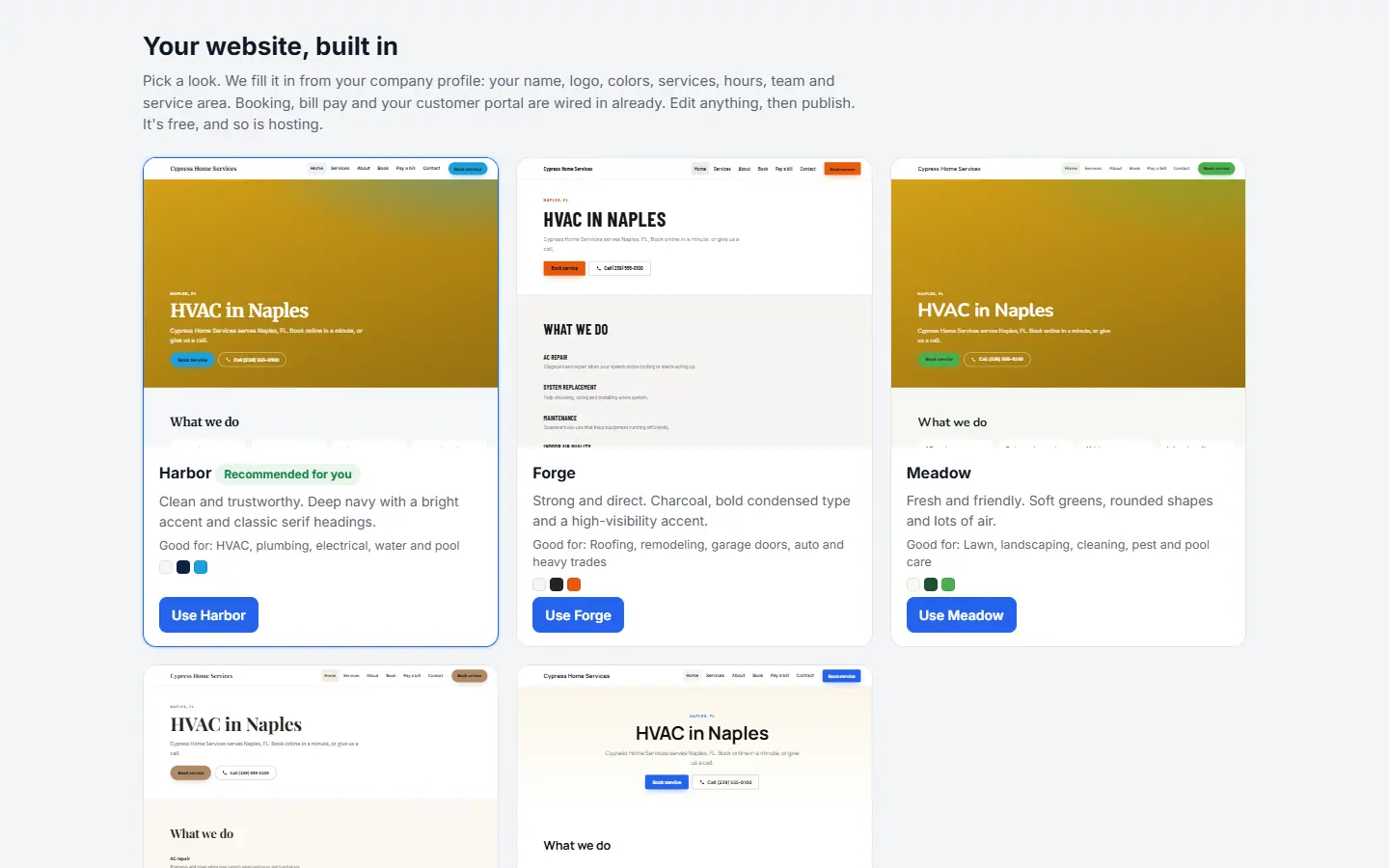
Step 1: Pick a template
Open Sales → My Website. Pick a look, for example Use Harbor; one is marked Recommended for you. It fills in from your company profile: your name, logo, colors, services, hours, team and service area, with booking, bill pay and your customer portal already wired in.
Step 2: Edit pages and sections
Click Edit. Add pages with + Add page and sections with + Add section, and change text, photos, colors and fonts. Switch between Desktop and Phone preview as you go. You add and arrange sections; it isn’t free-form drag-and-drop.
Step 3: Check your business details and SEO
Fill in Your business, Hours, Service area and Social links, and the Search (SEO) title for each page. The Checklist and Google Business Profile tips show what’s left.
Step 4: Publish
Click Publish. Your site is live at your free address (yourname.site.myhomeservice360.com), with booking, pay links and a contact form built in.
Step 5: Connect your own domain (optional)
Under Your own domain, enter a domain you own and follow the steps, then click Check now. SSL is set up automatically. Click Make primary when it’s connected.
Still stuck? Tell us what you were trying to do and where you got stuck. A screenshot helps.
Your ticks are saved in this browser only. Updated October 2026.
Questions about this
Why don’t the Book buttons and forms work in the editor?
In the editor, Book buttons open your real booking page in a new tab so you can try it. Contact and request forms send only from your published site, so test them after you click Publish.
Is the website really free?
Yes. Hosting and SSL are $0 a month, and you can use your free address or connect a domain you own.