
Write the scope of work on a proposal
Spell out what you’ll do, what’s included and what isn’t, so the customer knows exactly what they’re signing.
Free forever Not a trial. No card, no contract, unlimited users. Card payments cost 3.9% + 30¢. Our promise →
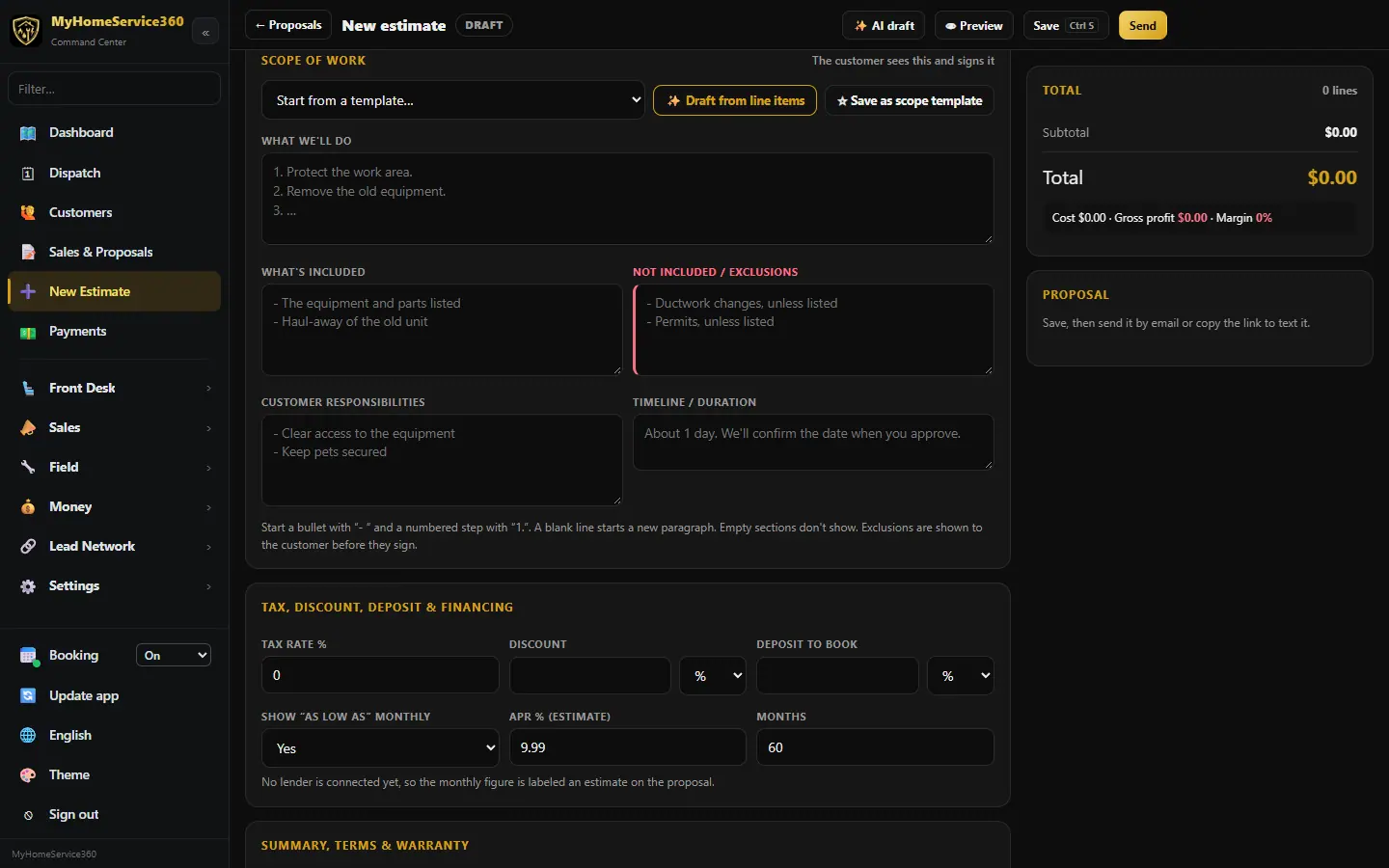
Step 1: Open the Scope of work card
In New Estimate, scroll to Scope of work. It has five sections, and you fill in only the ones you need: What we’ll do, What’s included, Not included / exclusions, Customer responsibilities and Timeline / duration. Empty sections don’t show.
Type it the way you’d say it. Start a line with “- ” for a bullet or “1.” for a numbered step, and leave a blank line for a new paragraph.
Step 2: Start from a template or a draft
Click Start from a template and pick one to fill in the sections, then edit them for this job. Or click ✨ Draft from line items: it drafts the scope from the lines already on the estimate. It’s a starting point, so read it and change anything that isn’t right before you send.
Step 3: Templates for your trades
Start from a template lists ready-made scopes for the trades your company is signed up for, and only those. Each trade has Maintenance, Repair and Replacement templates for its common systems, like a furnace, a water heater or a panel. Search by name, or pick a trade and a category. Tick Show all trades if you need one from another trade.
Picking one fills What we’ll do, Not included and Timeline, adds the documentation you’ll provide to What’s included, and fills in the warranty. If the trade usually needs a licensed pro or a permit review, you’ll see a note in the builder. That note is for your office and isn’t shown to the customer.
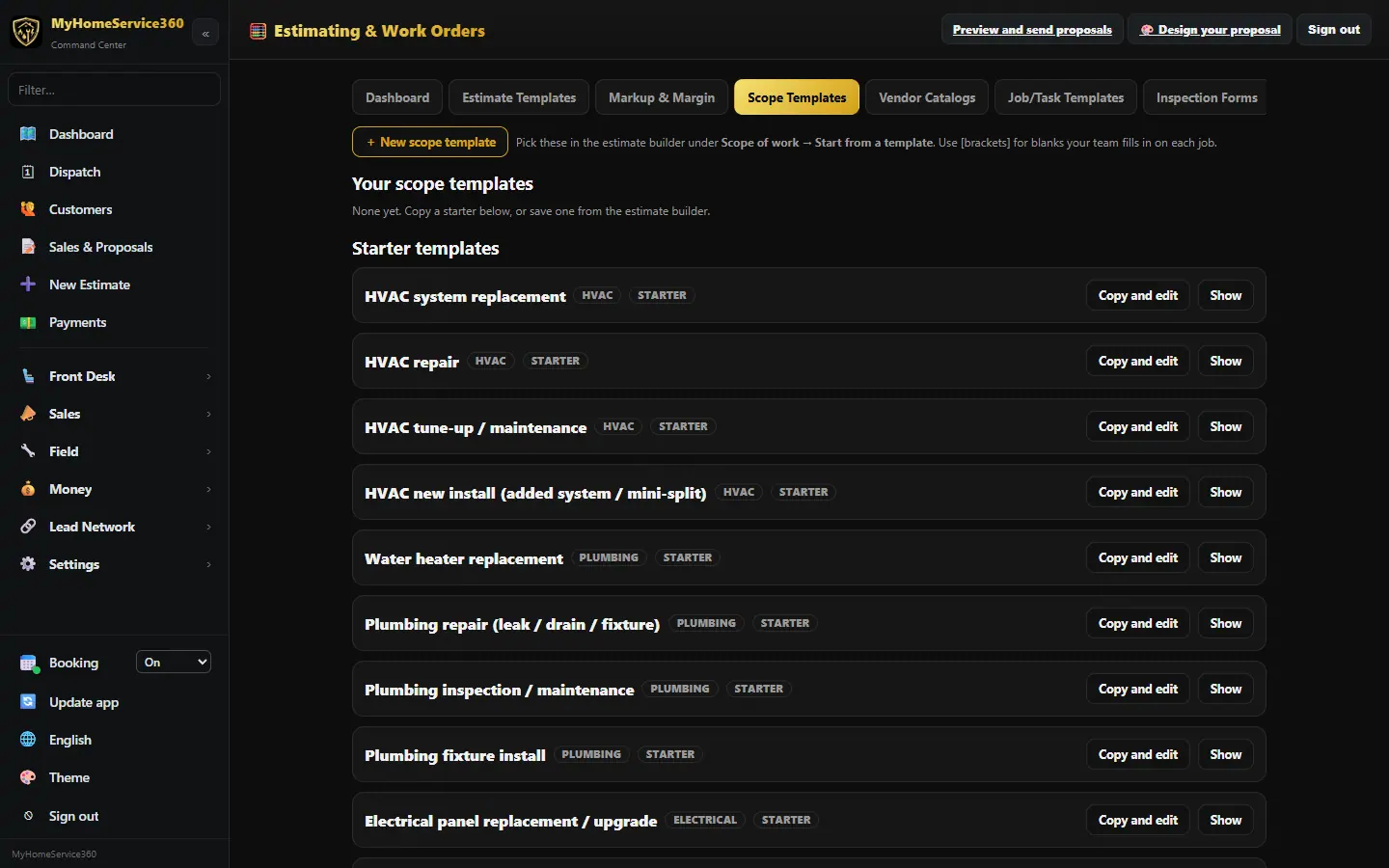
These are starting templates, not step-by-step work instructions. Read each one, change it to fit the job, and follow local code. You’ll find the same list in Settings → Estimate Templates & Forms → Scope Templates under Templates for your trades, where Copy and edit saves one as your own.
Step 4: Warranty
Under the sections is a Contractor warranty, verify manufacturer terms block. Picking a trade template fills it in from your warranty defaults: parts and labor in days for repairs, and system parts and system labor in years for replacements. Cleaning, pest and similar services get a re-service guarantee in days instead, and some services, like inspections, have no warranty. You can change any number for this job, or remove the block.
Set your own defaults in Sales & Proposals → Settings → Warranty defaults. It’s your contractor warranty. Manufacturer warranties are separate and set by the manufacturer, so only offer system parts years where documented manufacturer coverage applies. The customer sees the warranty as a table on the proposal, it’s saved with their signature, and it carries onto the job and the invoice.
Step 5: Write one for each option
When the estimate has Good / Better / Best options, the card shows a tab for each option, so each one can have its own scope and its own exclusions.
Step 6: Save it as a template
Wrote one you’ll use again? Click Save as scope template. Your templates live in Settings → Estimate Templates & Forms → Scope Templates, where you can also click + New scope template, or Copy and edit one of the starter templates. Put [brackets] around anything your team fills in on each job.
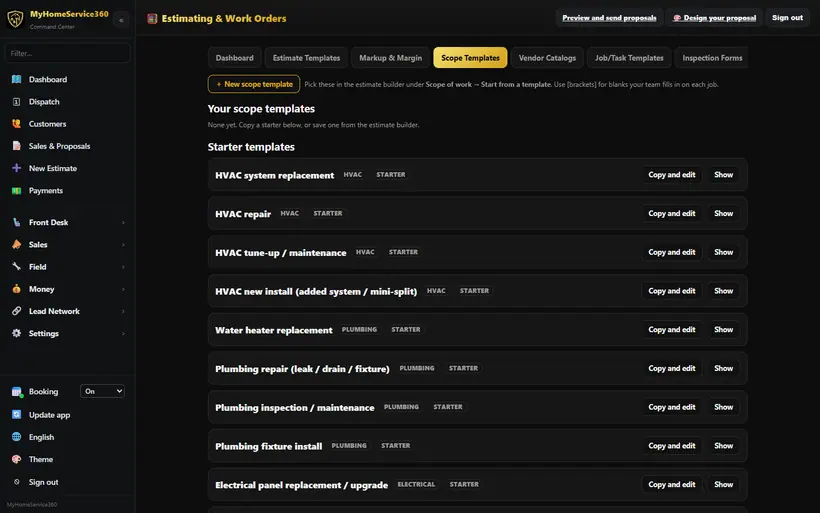
Real screen from the demo account; names and numbers are sample data. Step 7: What the customer sees
The proposal shows the scope for the option they pick, with your logo and brand color, and the warranty as a table. Right above the signature is a box, Before you sign: what’s not included, so exclusions are never a surprise. When they sign, the approved scope and warranty are saved with the signature and can’t change afterward.
Step 8: It goes on the job
Once the proposal is approved, the scope goes onto the job’s description, so your techs and the office see exactly what was sold.
Still stuck? Tell us what you were trying to do and where you got stuck. A screenshot helps.
Your ticks are saved in this browser only. Updated October 2026.
Questions about this
Can I change the scope after the customer signs?
No. The approved scope is frozen when they sign. If the work changes, send a new estimate or a change for them to approve.
Why don’t I see templates for every trade?
The template list shows the trades your company is signed up for. Tick Show all trades in the template picker to see the rest, or add a trade under Settings, Your trades.
Is the warranty a manufacturer warranty?
No. It’s your contractor warranty, and the proposal says so: Contractor warranty, verify manufacturer terms. Manufacturer coverage is separate and may require registration.