
Proposal templates: build once, use on every estimate
Make a template for work you quote often, with its lines, prices, Good / Better / Best options, add-ons, scope, terms, warranty and photos. Load it on any estimate in one click, and edit it any time.
Free forever Not a trial. No card, no contract, unlimited users. Card payments cost 3.9% + 30¢. Our promise →
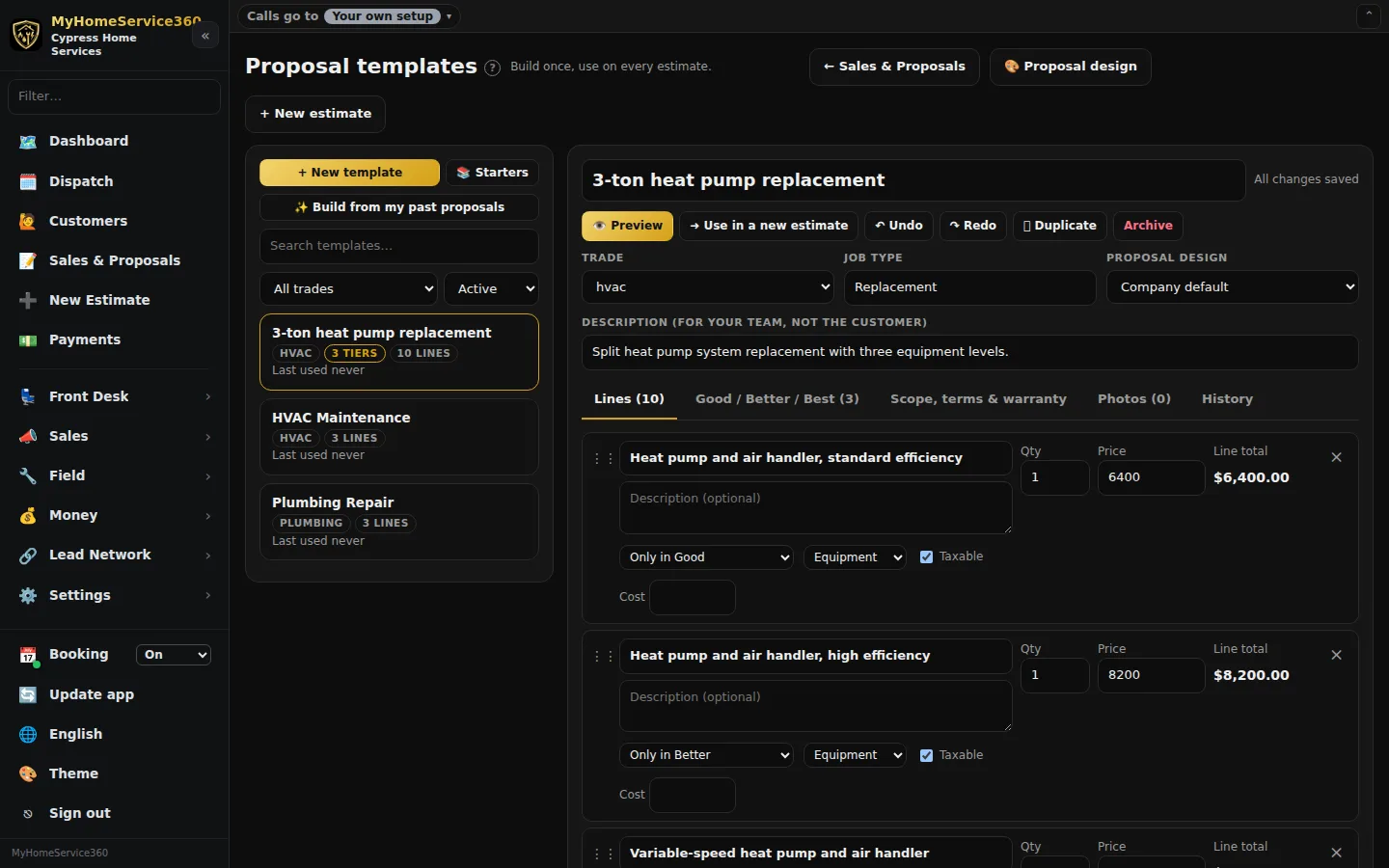
Step 1: Open your templates
Open Sales & Proposals and press 🧩 Templates. In the estimate builder, the Manage link next to Start from a template opens the same page. Your templates are listed on the left, most recently used first. Search by name, or filter by trade.
Step 2: Make a template
Press + New template and give it a name, like the job you sell (“3-ton heat pump replacement”). Or press 📚 Starters to copy one of ours. Starters are picked for your area, so a Florida company sees heat pumps, heat strips and hurricane prep, not furnaces. Starters don’t have prices: lines that match your price book use your price, and you price the rest.
Already built a good estimate? Open it in the builder and press ☆ Save as template.
Step 3: Build from your past proposals
If we brought over your proposals from QuickBooks, press ✨ Build from my past proposals. We group them by the kind of work and show each group with how many proposals it’s based on, how often you won, and your typical price. Open one to review it: the lines and wording are yours, from the accepted proposal closest to your typical price. Lines that belonged to one customer, like their name, address or a serial number, are left out, and you can tick any of them to put it back. Possible typos are only fixed if you tick them. Press Save as a template to keep it. Your past proposals are never changed.
Step 4: Lines and prices
On the Lines tab, type a line or press + From price book. Lines from your price book always use today’s price when the template is loaded, so a price change updates every template. Your 3.9% card fee is already in your price-book prices. Drag the ⋮⋮ handle to reorder lines, and use × to remove one.
Step 5: Good / Better / Best and add-ons
On the Good / Better / Best tab, add up to three options with a name, a short description, features (one per line) and a warranty for each, and mark one Recommended. Then on Lines, set each line to be in every option, only in one option, or an Add-on the customer can pick. The totals under the lines show each option’s price.
Step 6: Scope, terms, warranty and photos
The Scope, terms & warranty tab fills the proposal’s scope of work, your contractor warranty, terms and deposit when the template is loaded. On Photos, add pictures that belong on every proposal for this job, like the equipment you install. They’re copied onto the estimate when you first save it.
Step 7: It saves as you go, with undo
Every change saves itself in a second or two. The top right says All changes saved. Press ↶ Undo (or Ctrl+Z) to take a change back. The History tab keeps your last 60 saves, and Restore brings back any of them. What’s there now is kept too, so you can always go back. If two people edit the same template, the second one is told to reload instead of overwriting the first.
Step 8: Preview it
Press 👁 Preview to see a proposal from this template exactly as your customer will see it, in your proposal design, with today’s prices. Pick a different design under Proposal design if this job uses one.
Step 9: Use it
Press ➜ Use in a new estimate, or in the builder pick it under Start from a template. Everything is copied in, and you change anything for this one job. The builder shows ✎ Edit the template if you want to change the template itself.
Step 10: Copy, archive and restore
⧉ Duplicate makes a copy to change, like a 4-ton version of a 3-ton template. Archive takes a template out of the builder without deleting it. Switch the list to Archived and press Restore to bring it back.
Still stuck? Tell us what you were trying to do and where you got stuck. A screenshot helps.
Your ticks are saved in this browser only. Updated October 2026.
Questions about this
If I change a template, do proposals I already made change?
No. Each estimate keeps the copy it was made with. New estimates use the template as it is now.
Who can change templates?
People who can set prices: owners, admins and office staff. Technicians can use templates but can’t change them.
Do you change my QuickBooks or my imported proposals?
No. Building from your past proposals only reads them. A template is created only when you press Save.
Why don’t I see furnace starters?
We pick starters for where you work. In hot, humid areas like Florida we lead with heat pumps, heat strips, dehumidifiers, coil and drain-line work and hurricane prep. Press “Show starters that aren’t usual in your area” to see the rest.