
The tech app (phone and iPad)
Techs run the day from a phone or iPad: today’s jobs, customer and equipment details, photos, line items, signatures, payment and the time clock. It keeps working offline.
Free forever Not a trial. No card, no contract, unlimited users. Card payments cost 3.9% + 30¢. Our promise →
Step 1: Get the app
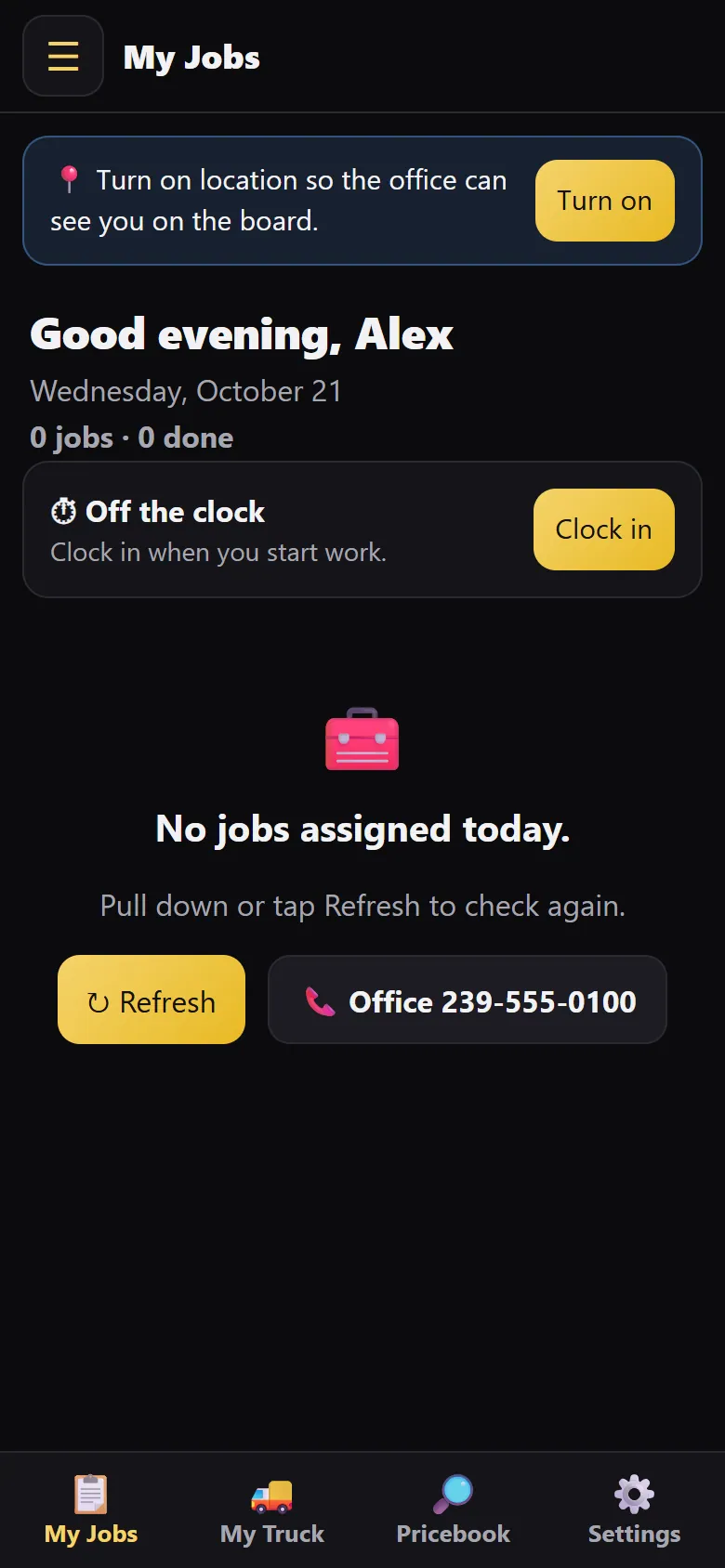
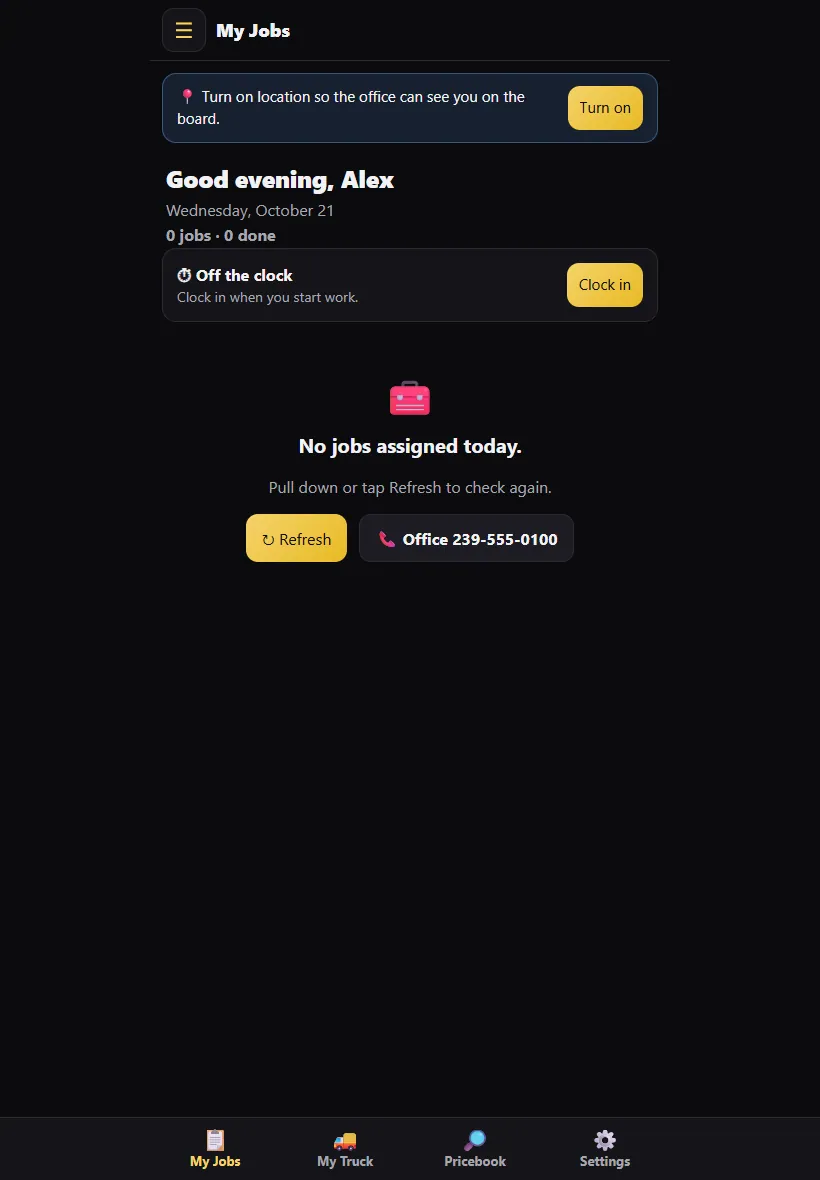
On Android, download the pro app from the app page. On iPhone or iPad, open dashboard.myhomeservice360.com in Safari, sign in, then tap Share → Add to Home Screen. The full iPhone app is on its way to the App Store. See Put the tech app on your techs’ phones.
Step 2: The next step is always the big button
Open a job and the button at the bottom shows what to do next: En Route, then I’ve Arrived, then Get the signature, then Complete job & invoice. Signing alone doesn’t finish the job; the Complete button does, and it makes the invoice. + Add next to it adds items, photos, notes or a parts request, and ⋯ is for anything that’s not right.
Step 3: Sign in
Use the same Business ID with the tech’s own username and password. Techs go straight to their app, never the office screens, and they can’t see or change company settings, even by typing an office address. Tick Keep me signed in on this phone on a phone only they use. Owners who also run calls (owner-operators): turn on Add a tech login on your own card in Users & Permissions, then sign in here with your usual email and password. You see exactly what a tech sees, you show on dispatch and the live map with your truck, and Switch to office view in the menu takes you back to the office.
Step 4: Find your way with the menu
Tap ☰ at the top left. The menu has My Jobs (today), All my jobs (today and the week ahead, so you can see what’s coming), My Truck, Pricebook, Settings and Call the office. Sign out is at the bottom of the menu and at the bottom of Settings. If you have changes that haven’t synced yet, it asks first so nothing is lost.
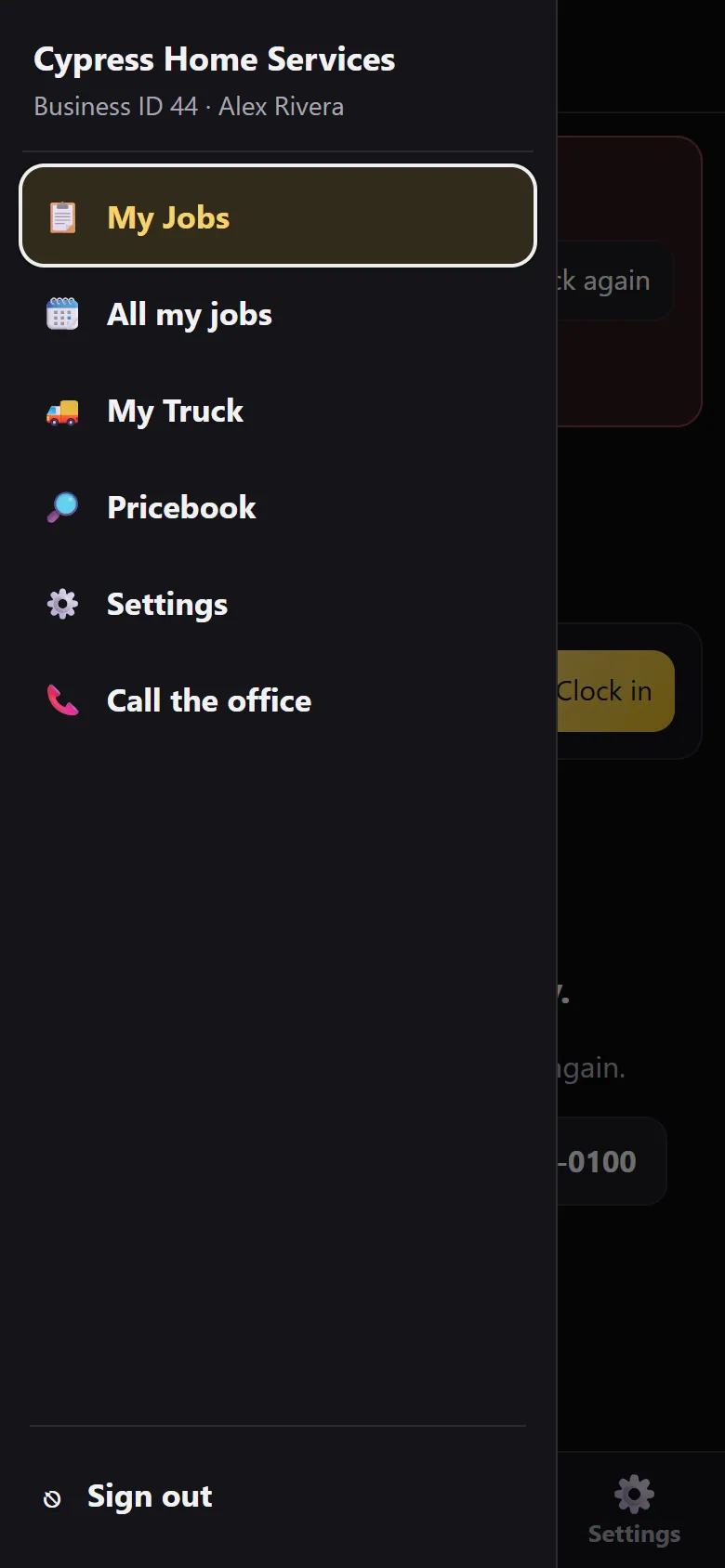
On a phone. Real screen from the demo account; names and numbers are sample data. Step 5: Turn on location
Location is required on company phones: while you’re signed in, the office sees you on the board and the map. If it’s off, a red banner says Location is required on company phones and stays until it’s on. You can keep working underneath it.
To turn it on, open your phone’s Settings, find the MyHomeService360 app (or your browser, if you added the app from Safari), tap Location and pick While Using the App (or Always). Then tap Check again. Settings → This phone in the app shows whether location is on.
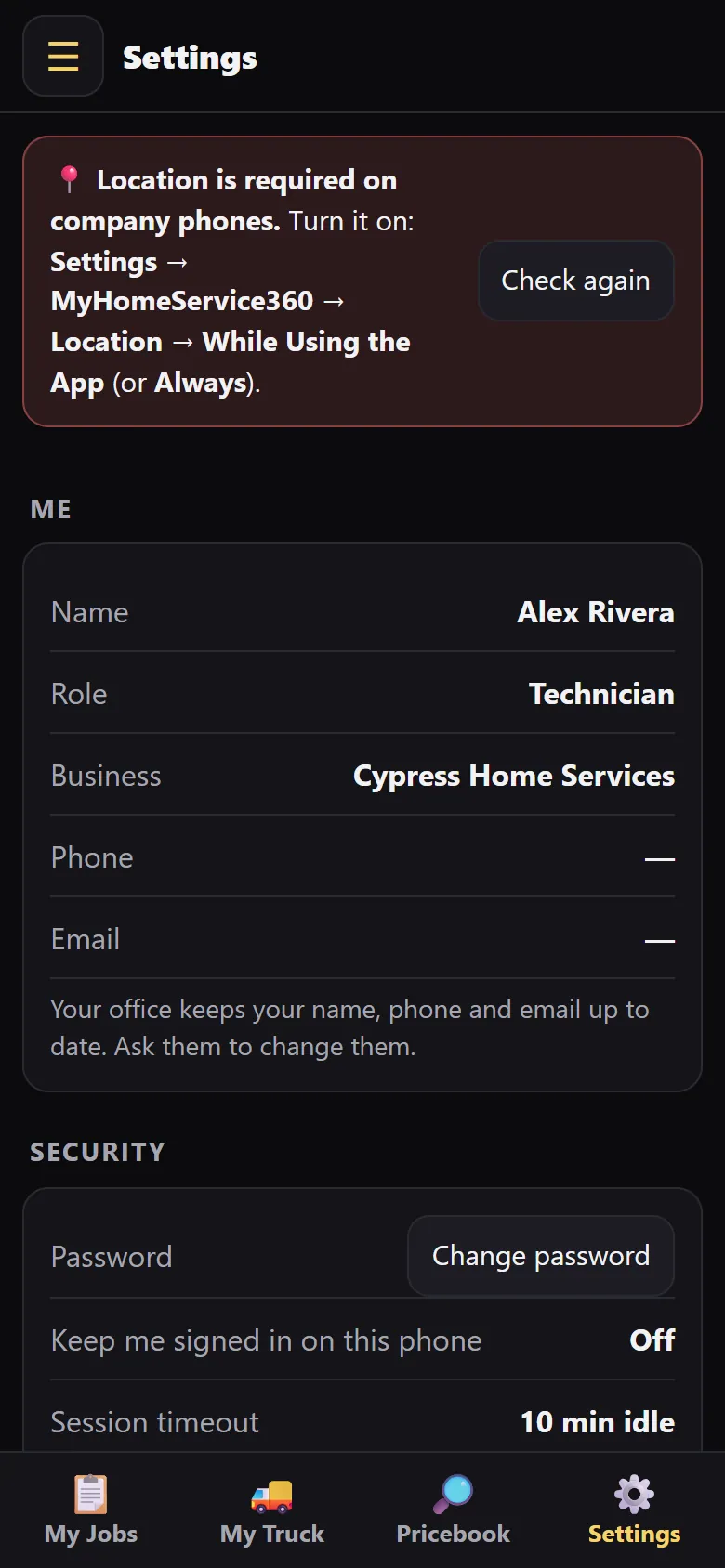
On a phone. Real screen from the demo account; names and numbers are sample data. Step 6: Start the day
The app opens on My Jobs: today’s jobs in order, with each customer, address and time window. Tap Clock in when you start work. If the office clocked you out (say you forgot), you’ll see a notice with the time and reason; tap Got it, and tell the office if it’s wrong. When your business goes to the customer, the app also clocks you in automatically when you reach your first job of the day and shows a notice. If that was wrong, tap Wrong? Tap to fix to take it back. It never clocks you in before your first job’s start window, and the office can turn it off on the Time Clock page. The tabs at the bottom are My Jobs, My Truck, Pricebook and Settings.
Step 7: Work the job ticket
Tap a job and tap En Route when you leave. Your customer gets a text that you’re on the way, with your first name. If your company doesn’t have texting yet, the app shows Text from my phone with the same message ready to send from your own phone. On the ticket you’ll find the customer, equipment, checklist and history. Add photos (the office sees them on the job, grouped Before, After and Parts), add line items from the Pricebook (or a custom line), and capture the customer’s signature with Save signature. If nobody’s there, use Mark not home.
Step 8: Finish the job: signature, then Complete
The job ticket reads top to bottom: the customer and job details, then the work (Items, Home, Notes, Photos), then Finish at the very bottom. The customer signs in the box there (or tap Customer not available and pick a reason), then tap ✓ Complete job & invoice right under it. The green bar at the bottom of the screen says ↓ Sign & complete and jumps you straight to it. The job header also shows whether it’s a 🔧 Service call or a 🏗 Project.
Step 9: Take payment
Take card, bank (ACH) or cash right from the ticket, or Text the customer a receipt and a pay link. Tap to Pay works on supported Android phones in the pro app. Tap to Pay on iPhone is coming as soon as Apple approves our app. Until then, send a pay link or use Android.
Step 10: Check your truck and the price book
My Truck shows the stock on your truck; tap Request restock to ask the office for parts. On a job, tap 🚚 Used from my truck (or 📷 Scan part) for each part you pull off the truck. It comes off your truck count, the cost goes on that job, and the office gets a restock request to refill your truck. Need parts you don’t carry? Tap 🧰 Request parts (PO) on the job. Once the office orders them, add the supply-house receipt with 📷 Add a receipt for this job and it’s checked against that PO. Pricebook lets you search parts, labor and services or browse by category, and add them to a ticket.
Step 11: Work without signal
If the signal drops, keep working. The app saves on the phone and syncs when the connection is back.
Step 12: Use it on an iPad
On an iPad the same app uses the bigger screen, which is handy at the kitchen table when you walk a customer through options. Office staff can open Field → Tech View (Admin) to see the app the way a tech does.
Still stuck? Tell us what you were trying to do and where you got stuck. A screenshot helps.
Your ticks are saved in this browser only. Updated October 2026.
Questions about this
Is the app free?
Yes. It’s part of the free software, for every tech you add.
Does it work on iPhone?
Today, add it to your home screen from Safari. The full iPhone app is coming to the App Store.
Why does the app need my location?
It’s required on company phones so the office can see where techs are while they’re signed in and send the nearest one. Turn it on in your phone’s Settings under the app, then Location.