
Get paid: invoices, cards and bank payments
Send pay links, take cards and bank (ACH) payments, record cash and checks, and see who owes you.
Free forever Not a trial. No card, no contract, unlimited users. Card payments cost 3.9% + 30¢. Our promise →
Step 1: Connect Stripe once
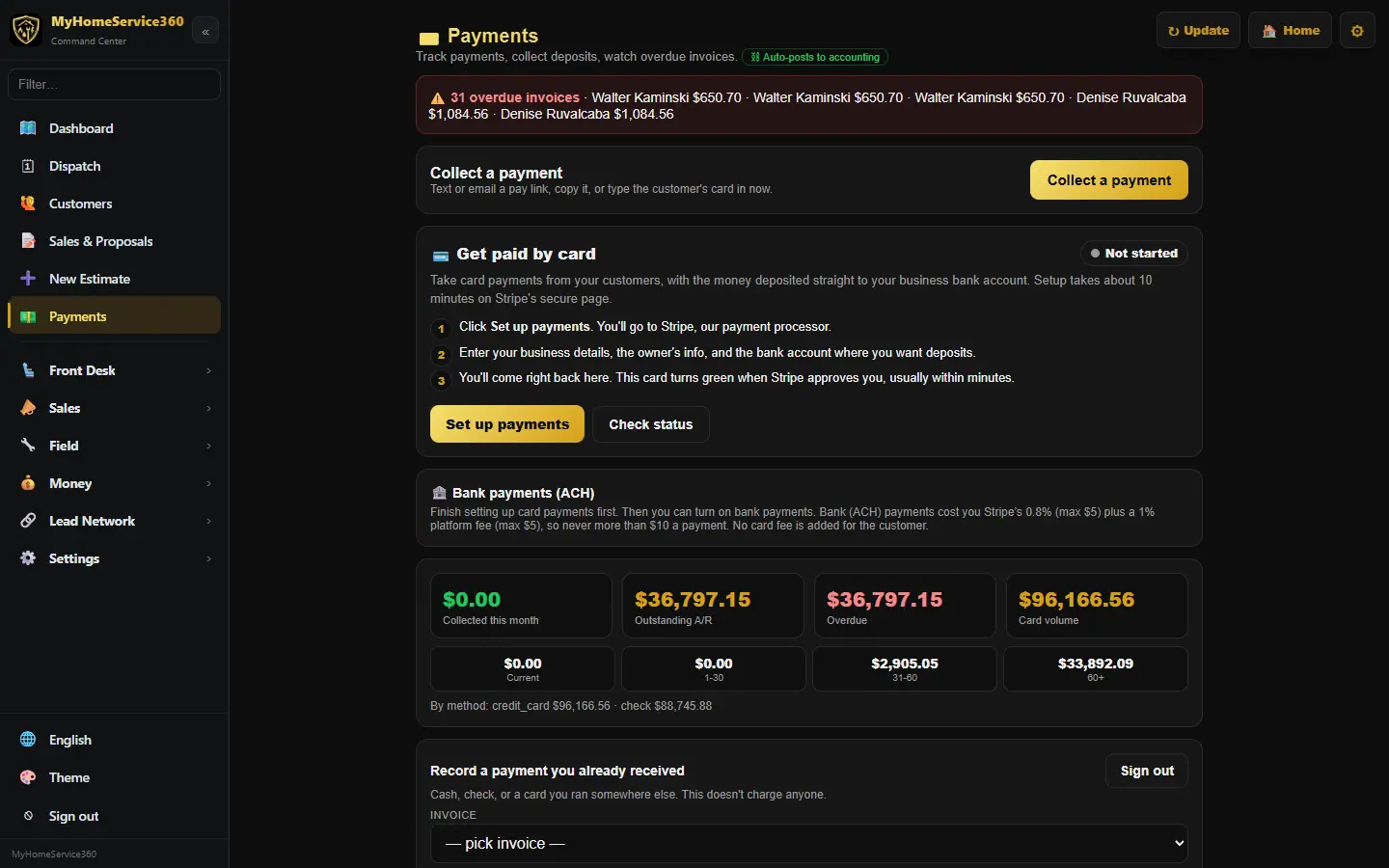
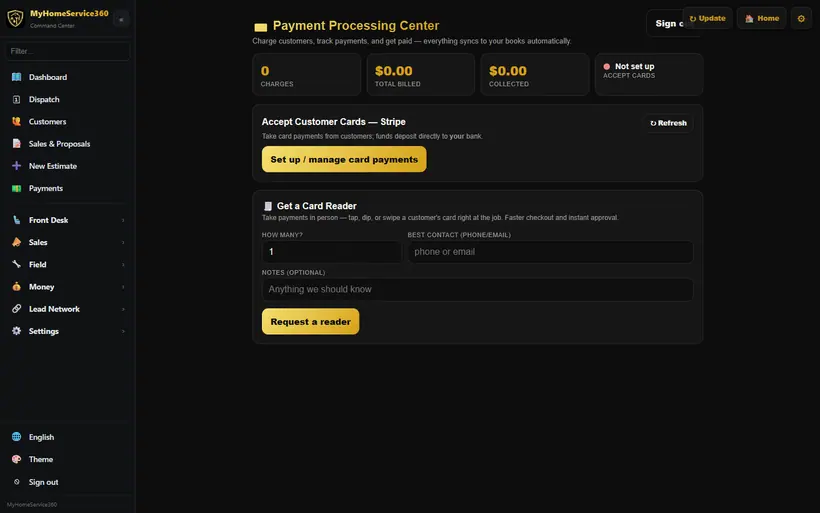
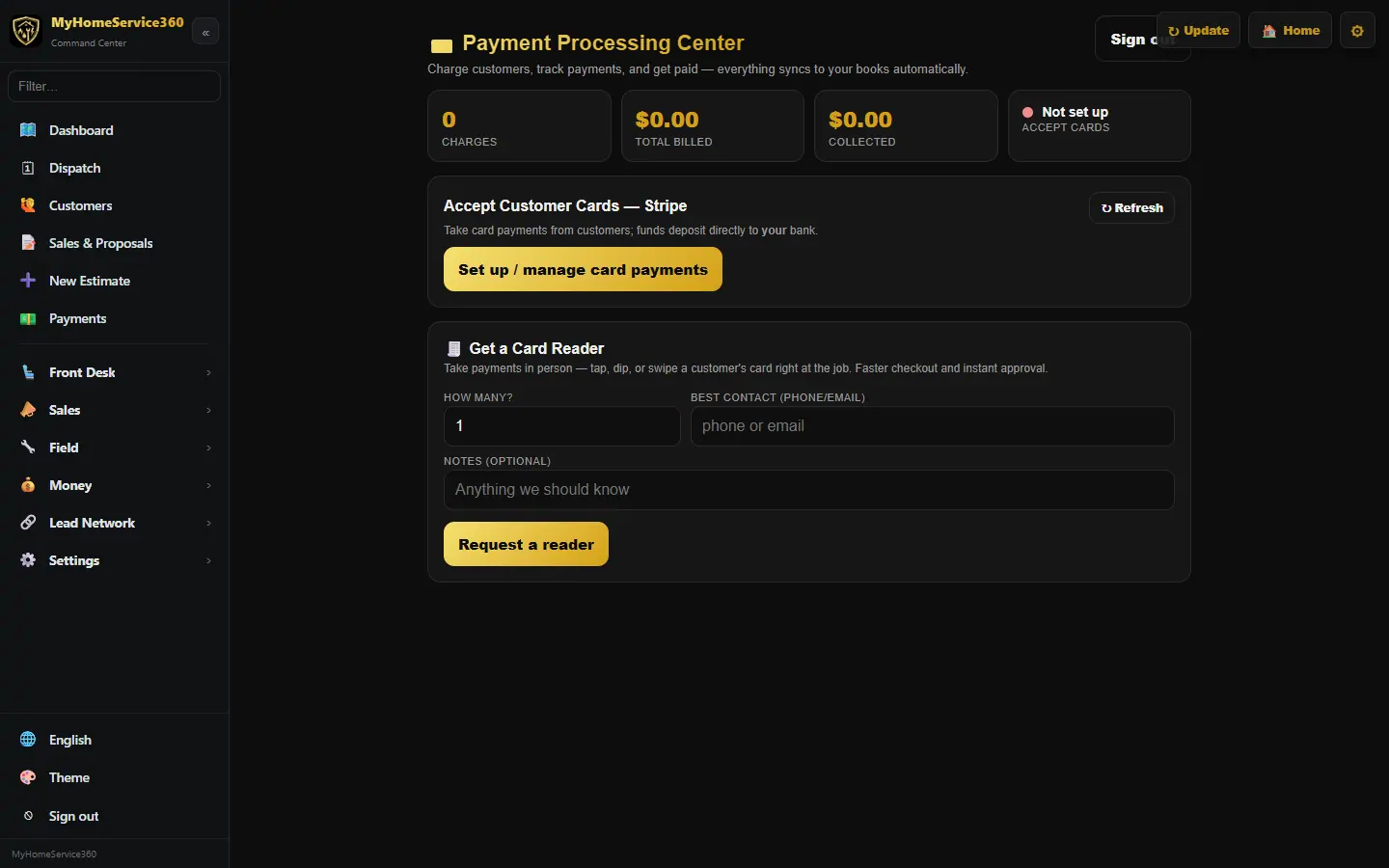
Open Payments. Under Get paid by card, click Set up payments. You’ll go to Stripe, our payment processor, to enter your business details, the owner’s info and the bank account for deposits, then come right back. Click Check status; the card turns green when Stripe approves you, usually within minutes. You can also manage it from Money → Card Payments.
Real screen from the demo account; names and numbers are sample data. Step 2: Collect a payment
In Payments, click Collect a payment. Pick the customer, what it’s for and the amount, then choose how to collect: text or email a secure pay link, copy the link, or type the card in yourself.
Step 3: Take bank (ACH) payments
Once card payments are set up, click Turn on bank payments under Bank payments (ACH). Customers can then pay from their bank account, with no card fee added for them. It costs up to 1.8%, never more than $10 a payment, and takes about four business days to clear.
Step 4: Record cash and checks
Under Record a payment you already received, pick the invoice, the method (cash, check, or a card you ran somewhere else) and a reference like the check number, then click Record payment. It doesn’t charge anyone, and it’s free.
Step 5: Save a card on file
Open Money → Card on File to save a card securely for repeat customers, so you can charge it later with their OK.
Step 6: Take payment in the field
Techs can take payment from the job ticket in the tech app, or text the customer a pay link. Tap to Pay works on supported Android phones in the pro app. Tap to Pay on iPhone is coming as soon as Apple approves our app. Until then, send a pay link or use Android.
Step 7: See who owes you
The payments center shows collected this month, outstanding and overdue, with aging buckets (current, 1–30, 31–60 and 60+ days) and totals by payment method. Overdue-invoice reminders with a pay link are available in automatic messages, off until you turn them on.
Step 8: Add a late fee to past-due invoices
Under ⏰ Late fees in Payments, click Late fee settings. Turn it on, pick a % of the unpaid balance or a flat $ amount, set the grace days after the due date, and choose whether it can be added again every 30 days it stays unpaid. While it’s on, a line about it prints on your invoices and pay page. Nothing is ever added on its own: past-due invoices that are ready show in a list with Add late fee on each one (or Add to all), and the invoice pane shows the same button. It adds a Late fee line, updates the balance and posts it to your books as late-fee income. It never charges a card and never sends anything to the customer.
Still stuck? Tell us what you were trying to do and where you got stuck. A screenshot helps.
Your ticks are saved in this browser only. Updated October 2026.
Questions about this
Do late fees get charged or sent automatically?
No. You click Add late fee on an invoice (or Add to all), and it only adds a line to that invoice. Nothing is charged to a card or sent to the customer. They see it the next time they open the invoice.
Is a late fee a card surcharge?
No. It’s based only on how late the invoice is, never on how the customer pays, and it’s booked as late-fee income.
Can I take a late fee off?
Yes. Open the invoice and click Remove next to the late fee. Your books are corrected to match.
What does it cost to take a card payment?
3.9% + 30¢. On a $500 card payment that’s $19.80. Recording cash and checks is free.
What does a bank (ACH) payment cost?
up to 1.8%, never more than $10 a payment.
Can I cover the card fee?
It’s already covered. A 3.9% card fee is built into your prices from the start: parts, labor (hourly and flat rate), travel and after-hours rates, and your service charge. It’s never added at checkout, so your customer pays the same price by card, bank or check. Prices you type on an estimate, proposal, invoice or ticket get it built in when you save the line, so they’re covered too, and nothing is ever counted twice. Your setup checklist asks Build card fees into your prices? Pick Parts and labor, Parts only or Off. You can change it any time in Settings → Price Book Setup → Pricing & Job Costing.
Is Tap to Pay available?
On supported Android phones in the pro app, yes. Tap to Pay on iPhone is coming as soon as Apple approves our app. Until then, send a pay link or use Android.