
Set up your proposal wording and warranties
Write the words every proposal starts from once: your option names, a personal note, what’s included and what isn’t, your warranty, payment terms and timeline.
Free forever Not a trial. No card, no contract, unlimited users. Card payments cost 3.9% + 30¢. Our promise →
Step 1: Open Proposal Setup
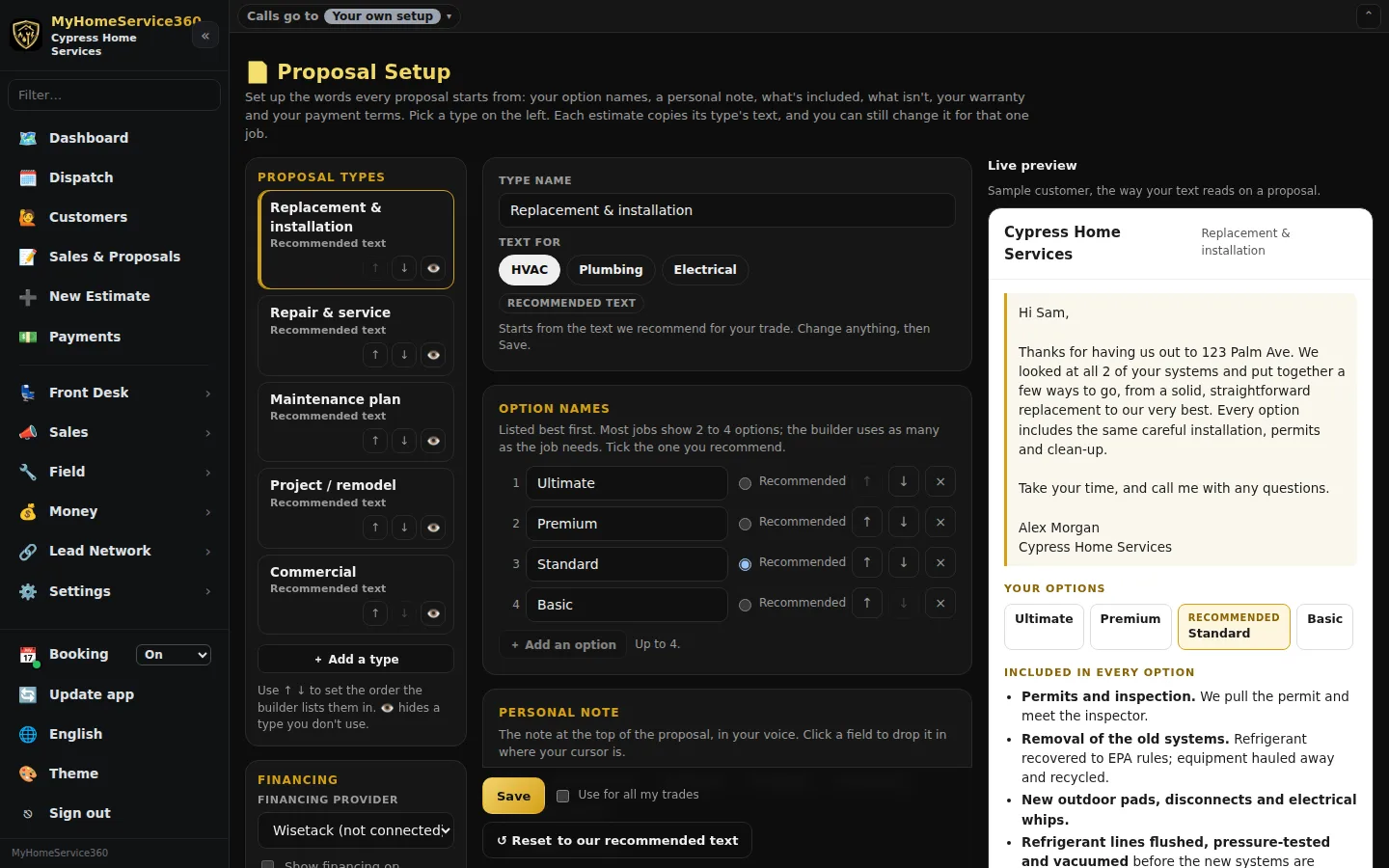
Open Settings → Proposal Setup. There’s also a link at the top of Settings → Price Book Setup. You start with five types: Replacement & installation, Repair & service, Maintenance plan, Project / remodel and Commercial. Each one already has wording we wrote for your trades, so you can use it as is or make it your own.
Step 2: Pick a type and a trade
Click a type on the left. If your company does more than one trade, pick the trade under Text for: a plumbing replacement and an HVAC replacement can each have their own wording. Tick Use for all my trades when you save to use one version for every trade.
Step 3: Name your options
List your option names best first, like Ultimate, Premium, Standard and Basic. Maintenance plans start with Premium, Plus and Essential. Tick the one you recommend. Most jobs show 2 to 4 options, and each estimate uses as many as it needs.
Step 4: Write your personal note
This note opens the proposal, in your voice. Click a field to drop it in where your cursor is: {first_name}, {address}, {company}, {preparer} (the person who built the estimate) and {system_count} (how many systems are on the proposal). They fill in on each proposal.
Step 5: List what’s included and what isn’t
Under Included in every option, each item has a bold lead and a plain sentence, like Permits and inspection. We pull the permit and meet the inspector. Under Not included unless listed, add the things customers sometimes assume are included, like ductwork or drywall repair. Use ↑ and ↓ to reorder and × to remove. The Found something while working note tells customers you’ll stop and give them a written price before doing anything extra.
Step 6: Fill in the warranty table
Each row is something you cover, like parts, labor or an included maintenance plan, and each column is one of your options. Type what you’ll stand behind in each cell. Manufacturer coverage is separate and usually needs registration, so only promise what you’ll honor.
Step 7: Add why it matters, payment terms and timeline
Write three short Why it matters tiles, then your deposit percentage, when the balance is due, how many days the proposal is good for, your fine print, and how long the work usually takes.
Step 8: Check the preview, then save
The preview on the right (below the editor on a phone) shows your wording with a sample customer. Click Save, and new estimates use it right away. Estimates you already built keep their own copy. Reset to our recommended text puts our wording back.
Step 9: Use it on an estimate
In New Estimate, pick the type under Proposal type. Its wording is copied onto the estimate, fills in an empty scope of work and sets the deposit. If the estimate already has options, you’re asked whether to rename them to your option names. Open Change the wording for this job to edit it for this job only.
Step 10: Add, hide or reorder types
Click + Add a type for work you sell often, like a generator install, and pick which type’s wording it starts from. 👁 hides a type you don’t use, and ↑ ↓ set the order the builder lists them in.
Step 11: Office notes stay private
Each line on an estimate has an Office note field for your team. Customers never see it. When you send, any line priced at $0.00, marked for a price review, or with what looks like an office note in its description is listed first, so you can fix it or confirm you’ve checked it.
Step 12: Financing
Financing is off until a lender is connected. We’re setting up Wisetack, and until it’s connected and switched on, proposals don’t show financing, APR or monthly payments. You’ll see its status under Financing on this page.
Still stuck? Tell us what you were trying to do and where you got stuck. A screenshot helps.
Your ticks are saved in this browser only. Updated October 2026.
Questions about this
If I change my setup, do proposals I already built change?
No. Each estimate keeps the copy it was built with. To pull in your new wording, pick the type again on that estimate, or click Use the type’s text again.
Who can change Proposal Setup?
Owners and admins. Anyone who builds estimates can pick a type and change the wording for one job.
Can I put back the wording you recommend?
Yes. Click Reset to our recommended text on that type. It only changes that type, and only the trade you’re looking at.