
Read your dashboard and reports
Know your numbers from the dashboard scoreboard, then run reports for any date range.
Free forever Not a trial. No card, no contract, unlimited users. Card payments cost 3.9% + 30¢. Our promise →
Step 1: Read the scoreboard
The Dashboard opens on today’s numbers: collected and invoiced this month, average ticket, revenue per tech, close rate, open proposals, money owed to you and more. Switch the period with the date button.
Every card, tile and number on the Dashboard is a shortcut. Click or tap it to open the page behind it, like late jobs on the dispatch board, proposals waiting on a yes or jobs below your target margin.
Step 2: Run a report
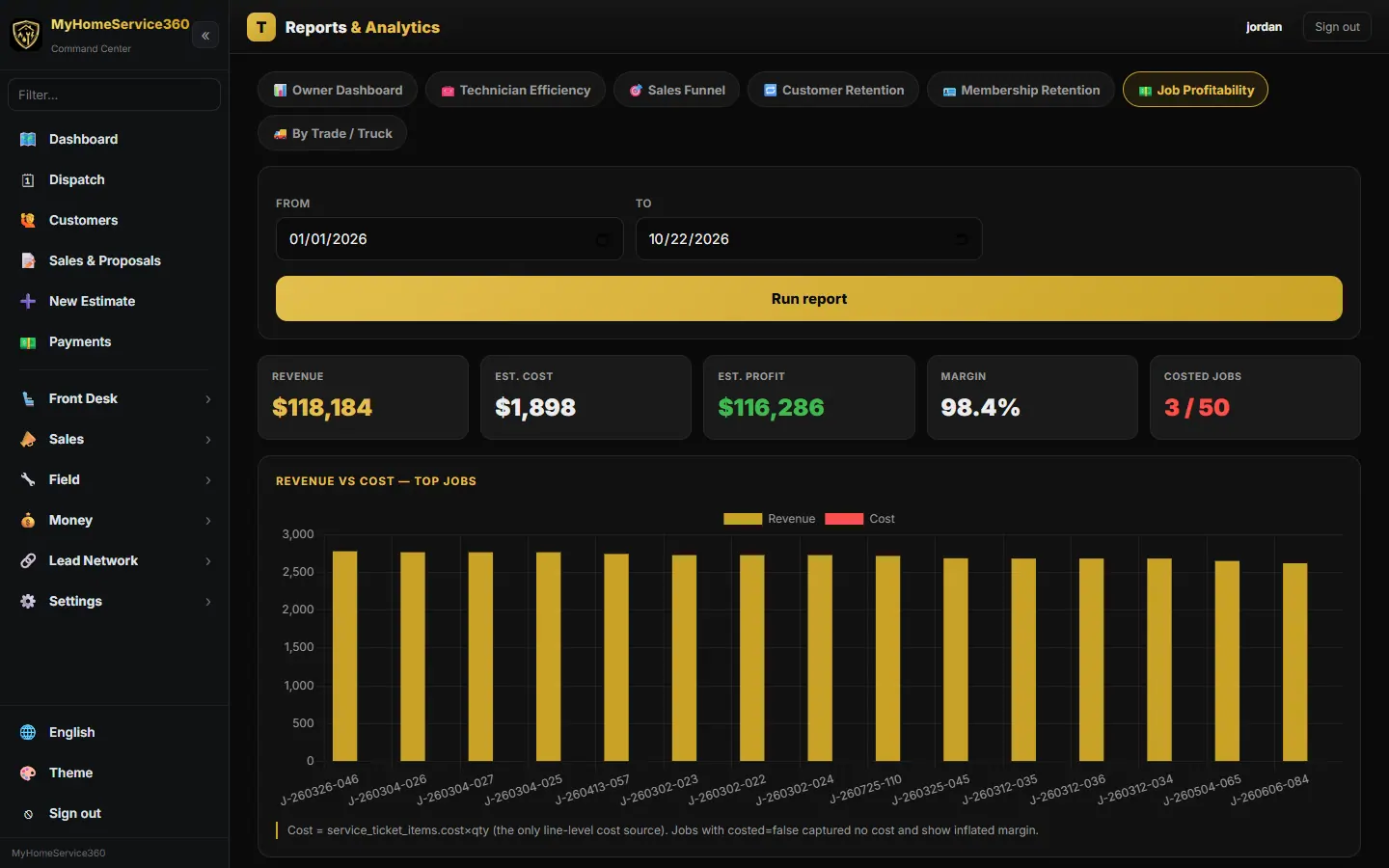
Open Money → Reports, pick a report and a date range, and click Run report. Group by month or by tech where it’s offered.
Step 3: Open, print or export it
When you run a report, it opens in its own window over the page as a PDF preview. Use Download to save the PDF, Print to print it, or Export to save it as Excel (.xlsx), PDF or CSV for your accountant or partners. Click Exit (or press Esc) to go back to the report on the page, and Open as PDF to bring the window back.
Still stuck? Tell us what you were trying to do and where you got stuck. A screenshot helps.
Your ticks are saved in this browser only. Updated October 2026.
Questions about this
Do I need to set anything up for reports?
No. They fill in as you book, invoice and collect.