
The side menu, themes and your sign-in screen
Turn booking on or off from any page, update the app, pick a color theme, and give your team a sign-in link that remembers your company.
Free forever Not a trial. No card, no contract, unlimited users. Card payments cost 3.9% + 30¢. Our promise →
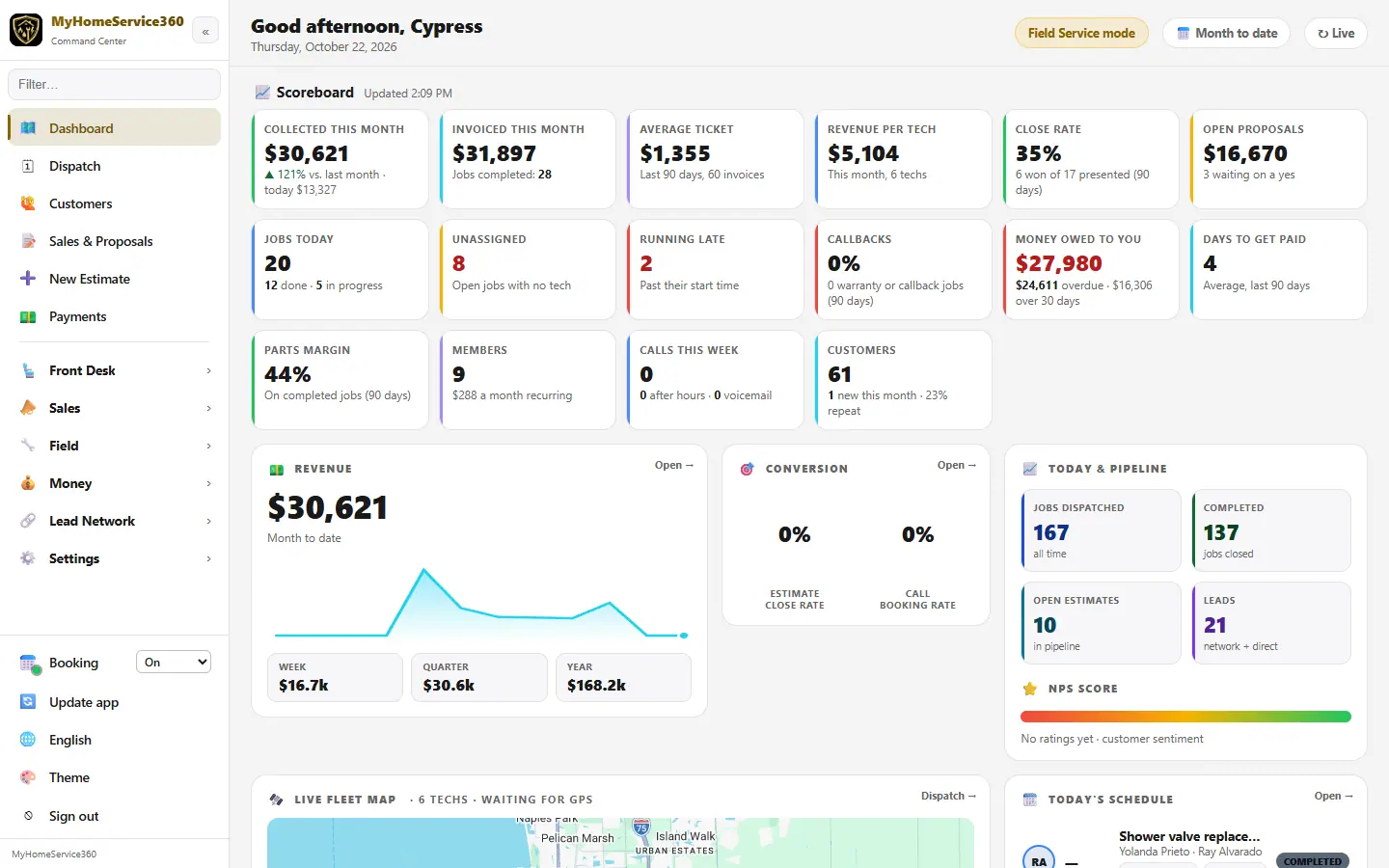
Step 1: Use the bottom of the side menu
The bottom of the side menu is the same on every page:
- Booking turns online booking On, Requests only or Off right there. Click the word Booking for the full settings. It’s the same switch as Settings → Online Booking (on / off), and only people allowed to change settings see it.
- Update ready shows up here only when a new version is out. It’s gold; click it when you’re at a good stopping point. To reload the newest version any time, use Settings → Update app.
- Your language, Theme and Sign out.
There are no floating buttons over the page any more. To get home, click Dashboard at the top of the menu.
Step 2: Pick a color theme
Click Theme at the bottom of the side menu and pick a theme, for example the dark default or Light. Every office page follows it, and maps go light in the light themes. Your choice is saved to your account, so it follows you to other computers. Everyone on your team picks their own.
Step 3: Set up your sign-in screen
Open Settings → Login Settings. Set the welcome headline, the instructions and the support phone and email people see when they sign in, and whether your logo shows. Pick a Sign-in screen theme for your company’s sign-in screen. Click Save login settings.
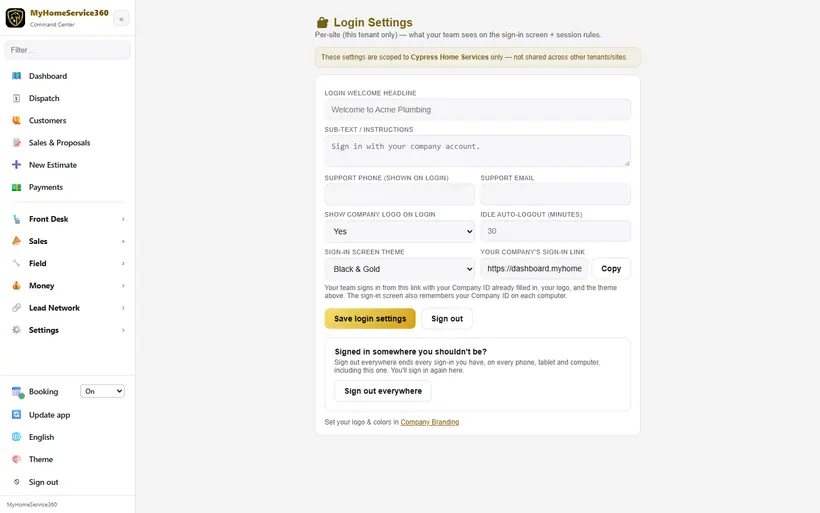
Real screen from the demo account; names and numbers are sample data. Step 4: Share your company’s sign-in link
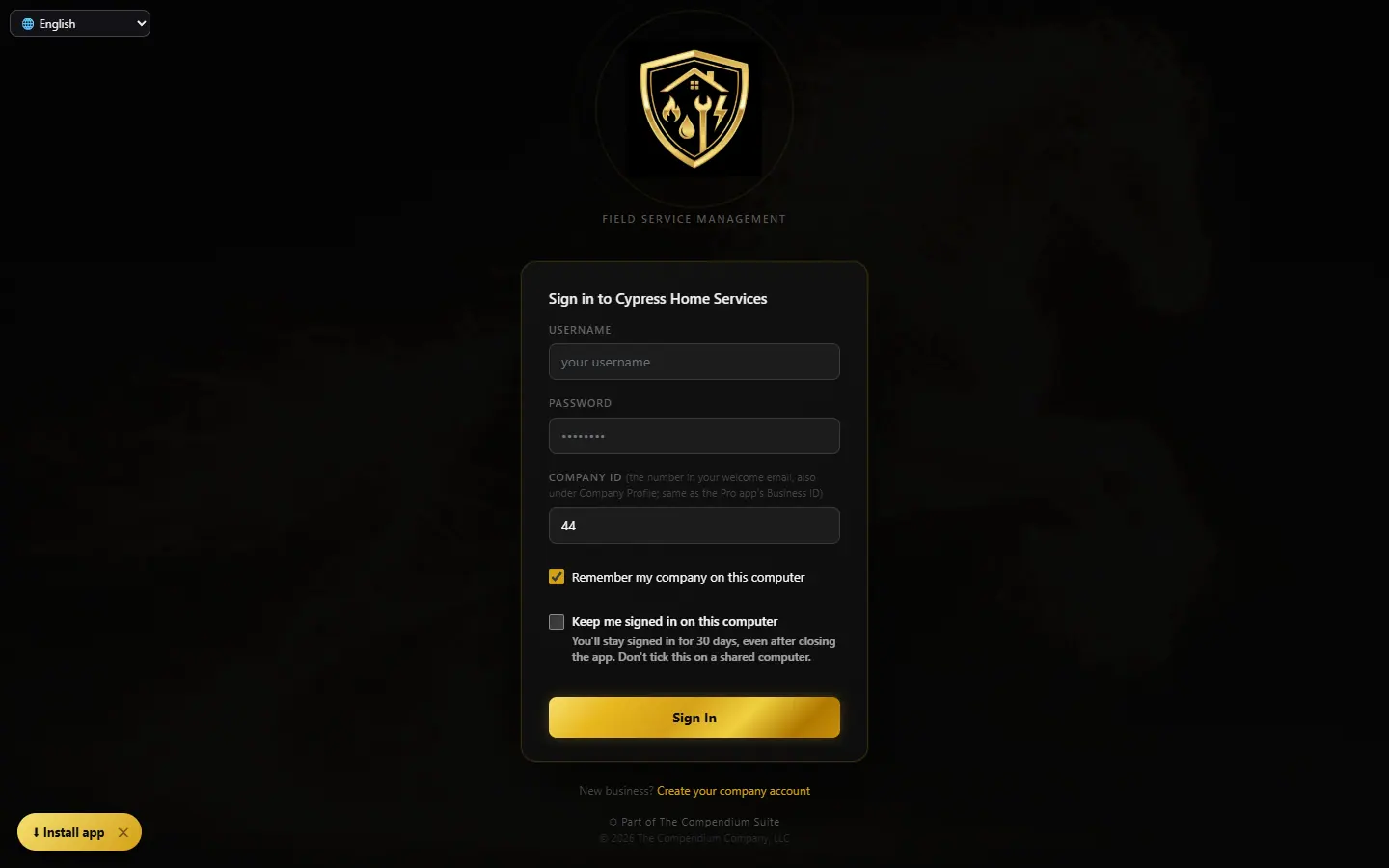
Under Your company’s sign-in link, click Copy. The link looks like dashboard.myhomeservice360.com/login?c=your-company. Your team signs in from it with just their email and password: no Company ID box, your name and logo on the card, and the theme you picked. Send it to new hires or bookmark it on office computers. Someone from another company can click Sign in to a different company under the form.
Step 5: Remember your company on a computer
On the sign-in screen, Remember my company on this computer is ticked by default, so next time the screen opens on your company with no Company ID box, even after you sign out. Untick it on a shared or public computer. It’s separate from Keep me signed in on this computer, which keeps you signed in for 30 days.
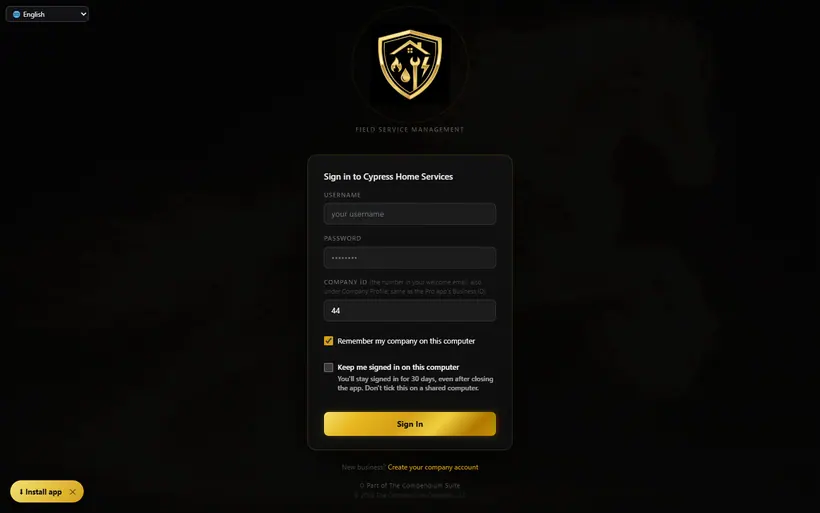
Real screen from the demo account; names and numbers are sample data. Step 6: Sign out everywhere
Lost a phone or signed in somewhere you shouldn’t be? On Settings → Login Settings, Sign out everywhere ends every sign-in you have, on every phone, tablet and computer, including this one.
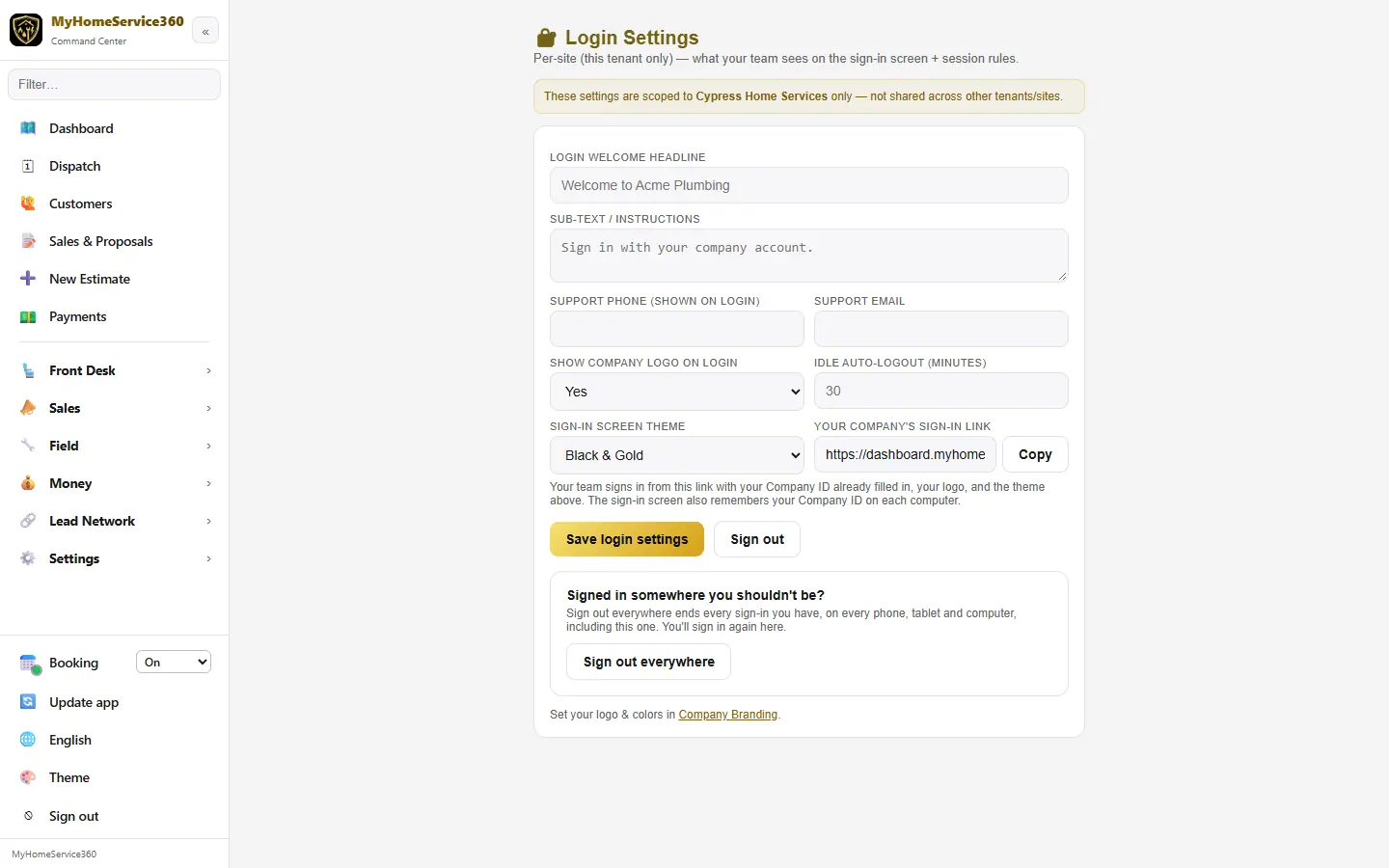
Still stuck? Tell us what you were trying to do and where you got stuck. A screenshot helps.
Your ticks are saved in this browser only. Updated October 2026.
Questions about this
Where did the Update and Home buttons go?
They moved into the side menu. Update app is under Settings, and an Update ready button appears at the bottom of the menu when there’s a new version. Dashboard at the top takes you home.
Why do I have to type my Company ID every time?
Leave Remember my company on this computer ticked when you sign in, or use your company’s sign-in link from Login Settings. Either one fills it in for you.